Cybersecurity can sound like something only big companies worry about. In reality, it affects anyone who uses email, social media, online banking, or a smartphone. The goal is not “perfect security”—it’s reducing the most common risks with simple, repeatable habits.
This guide explains the real-world threats (phishing, account takeover, malware, unsafe Wi-Fi) and the 80/20 defenses that give you the biggest security improvement for the least effort.
If you want a deeper next step
Read Protect Your Online Accounts for a step-by-step “account hardening” walkthrough.
Quick start: the 15-minute safety upgrade
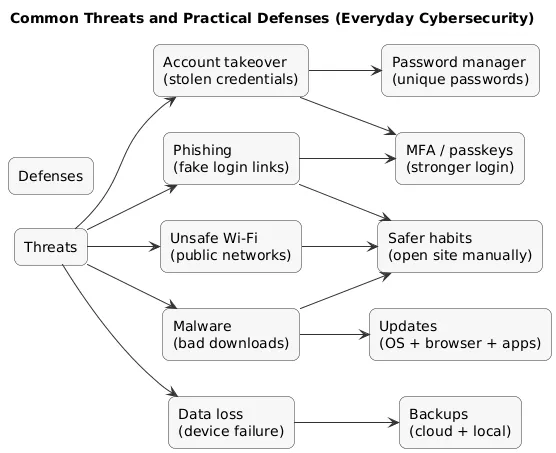
If you do nothing else, do these five actions (in this order). They stop a large share of everyday attacks:
- Secure your email (turn on MFA/passkeys; review recovery options; remove unknown sessions).
- Use a password manager (unique passwords for every important account).
- Enable strong MFA (prefer passkeys/security keys/authenticator apps; minimize SMS).
- Turn on automatic updates for your OS, browser, and key apps.
- Back up important data (cloud + local, and test restoring one file).
Threats → defenses overview (diagram)
1. What Is Cybersecurity?
Cybersecurity is about protecting your accounts, devices, and data from unauthorized access, misuse, and damage. For everyday users, it’s mostly:
- Identity protection: keeping attackers out of your accounts.
- Device safety: keeping your phone/laptop clean and updated.
- Data resilience: backups and recovery when something goes wrong.
Simple analogy
Think of cybersecurity like home security: strong locks (passwords), an alarm (MFA), routine maintenance (updates), and insurance (backups).
2. Why Cybersecurity Matters for Everyone
Attackers target everyday people because it’s efficient: a reused password or a single phishing click can unlock multiple accounts. The impact is often practical, not theoretical:
- Money: fraudulent purchases, payment app abuse, banking takeovers.
- Identity: impersonation, account resets, and lockouts.
- Privacy: access to photos, messages, documents, and location data.
- Reputation: scams sent from your hijacked social/email accounts.
The good news: a small set of controls (password manager + MFA + updates + backups) drastically reduces risk.
3. Common Online Threats You Should Know
You don’t need to memorize every term, but you should recognize the big categories:
- Phishing: fake messages or websites that trick you into logging in or sharing codes.
- Account takeover: attackers get into email/social/banking and escalate from there.
- Malware: software that steals data, hijacks sessions, or damages files.
- Ransomware: malware that encrypts files and demands payment (recovery relies on backups).
- Social engineering: manipulation and urgency—attacking the person, not the device.
Reality check
Most “hacks” are not technical wizardry. They’re password reuse, phishing, weak recovery settings, and unpatched devices.
4. Strong Passwords & Multi-Factor Authentication
Passwords fail mainly because humans reuse them. The fix is operational: use a password manager and stop reuse.
80/20 account security (diagram)

Password rules that actually work:
- Unique passwords for every important account (email, banking, Apple/Google, social).
- Long is strong: passphrases beat short complex strings (your manager can generate random ones too).
- Stop reuse completely—reuse turns one breach into many takeovers.
Then add Multi-Factor Authentication (MFA/2FA). Prefer stronger options:
- Best: passkeys or hardware security keys (phishing-resistant).
- Very good: authenticator app codes.
- Fallback: SMS (better than nothing, but exposed to SIM-swap risk).
Protect email first
Your email is often the reset key for other services. Securing email + password manager gives the biggest risk reduction.
5. Phishing & Social Engineering: Don’t Take the Bait
Phishing works by creating urgency. Your defense is to slow down and switch channels:
- Don’t click login links in messages—open the website/app yourself.
- Check the sender and domain carefully (lookalike domains are common).
- Never share MFA codes with “support.” Real support does not need them.
- Be suspicious of urgency (“act now”, “final warning”, “account will be closed”).
Practical verification
If you get a “bank alert” email, ignore the link. Open your banking app directly and check notifications inside the app.
6. Safe Browsing, Apps & Downloads
Many infections start with “free” downloads, pirated software, or risky browser extensions. Use a simple standard:
- Install from official stores and reputable vendors.
- Keep browser extensions minimal and uninstall what you don’t need.
- Watch permissions—if an app asks for access that makes no sense, don’t install it.
- Avoid pirated content—it’s a common malware delivery mechanism.
7. Wi-Fi & Device Security
Your device is where sessions live (your “logged in” state). Secure devices first, then networks.
Device baseline:
- Automatic updates for OS and apps.
- Screen lock (PIN/password + biometrics) with a reasonable timeout.
- Encryption enabled (default on most phones; verify on laptops).
- Find my device / remote wipe enabled if available.
Home Wi-Fi baseline:
- Change router admin password (never keep defaults).
- Use WPA2/WPA3 and a strong Wi-Fi password.
- Update router firmware a few times per year.
- Guest network for visitors (and optionally for smart devices).
8. Backups & What to Do If Something Goes Wrong
Backups turn disasters into inconveniences. A simple standard for everyday use: keep important data in at least two places (cloud + local), and test restoring.
- Cloud backup/sync: protects against device loss.
- Local backup: protects against account lockouts and some cloud mistakes.
- Restore test: verify you can actually recover what matters.
If you think you got hacked (diagram)

Fast response checklist:
- Secure your email first (password + MFA + remove unknown sessions + check forwarding rules).
- Revoke sessions (“sign out everywhere”) on important services.
- Change passwords for Tier-0 accounts (email, Apple/Google, banking, password manager).
- Review recovery settings (remove old phone/email; regenerate backup codes).
- Secure devices (update, scan; remove suspicious extensions/apps).
- Monitor alerts and notify contacts if your account sent messages.
Key point
Changing a password is not enough if an attacker still has an active session or changed recovery settings. Always review sessions/devices and recovery options.
9. Cybersecurity at Work: Simple Best Practices
- Verify payment requests and “urgent” finance emails via a second channel.
- Use approved tools for files and communication (avoid shadow IT).
- Report suspicious clicks early—fast reporting reduces damage.
- Separate work and personal accounts; never reuse passwords.
10. Helping Your Family & Kids Stay Safe Online
- Normalize asking for help if something feels suspicious.
- Set clear rules for installing apps, sharing photos, and clicking links.
- Use parental controls where appropriate, but rely on conversation more than tools.
- Lead by example: password manager + MFA + careful link habits.
11. Frequently Asked Questions About Cybersecurity
Do I need to be technical to improve my cybersecurity?
No. The biggest improvements are simple: password manager, MFA/passkeys, updates, safer link habits, and backups.
What is the single most important thing I can do to stay safe online?
Secure your email and adopt a password manager with MFA. Email is often the reset key for other accounts.
Is public Wi-Fi safe to use?
Avoid sensitive logins on unknown Wi-Fi. Prefer mobile data. If you must use public Wi-Fi, keep sessions short and avoid banking/admin actions.
How often should I change my passwords?
Focus on unique passwords. Change them immediately if you suspect compromise or if you reused them elsewhere.
Do I still need antivirus software in 2025?
Built-in protection is often sufficient if updated, but it cannot replace safe behavior, MFA, and patching.
12. Final Thoughts & Next Steps
Cybersecurity is mostly consistency. Start with the quick-start steps, then improve gradually. If you want a clear next guide, go to Protect Your Online Accounts.
Key cybersecurity terms (quick glossary)
- Cybersecurity
- Protecting accounts, devices, and data from unauthorized access, misuse, and damage.
- Phishing
- Fake messages or websites designed to trick you into sharing credentials or codes.
- Account takeover
- When an attacker gains control of an account and uses it for fraud, impersonation, or escalation.
- MFA / 2FA
- Multi-factor authentication: an extra proof beyond the password (passkey, authenticator, security key).
- Passkeys
- Phishing-resistant login method using cryptographic keys stored on trusted devices.
- Malware
- Malicious software that steals data, hijacks sessions, or damages files.
- Ransomware
- Malware that encrypts files and demands payment; backups are the core recovery mechanism.
- Encryption
- Scrambling data so only authorized parties can read it (important for device storage and secure connections).
Worth reading
Recommended guides from the category.