
Linux server administration is the operational discipline of keeping servers secure, stable, and observable. In practice, that means: controlling access, applying updates safely, operating services predictably, watching logs and metrics, and being able to recover quickly when something breaks.
This guide is intentionally practical and production-oriented. It is aimed at beginners running their first VPS, homelab, or small production server, and at developers who also need to operate the systems they ship. The goal is a repeatable baseline that prevents common incidents (lockouts, disk full outages, silent service failures).
Operator mindset
Good admin work is mostly risk reduction: fewer surprises, faster recovery, and predictable changes. When in doubt, prefer changes that are reversible and well-documented.
1. What Linux Server Administration Covers
A solid admin baseline is not “knowing every command”. It is knowing the control surfaces of a server: identity and access, change management (updates), service lifecycle, observability (logs/metrics), and recovery (backups).
Admin baseline map (diagram)
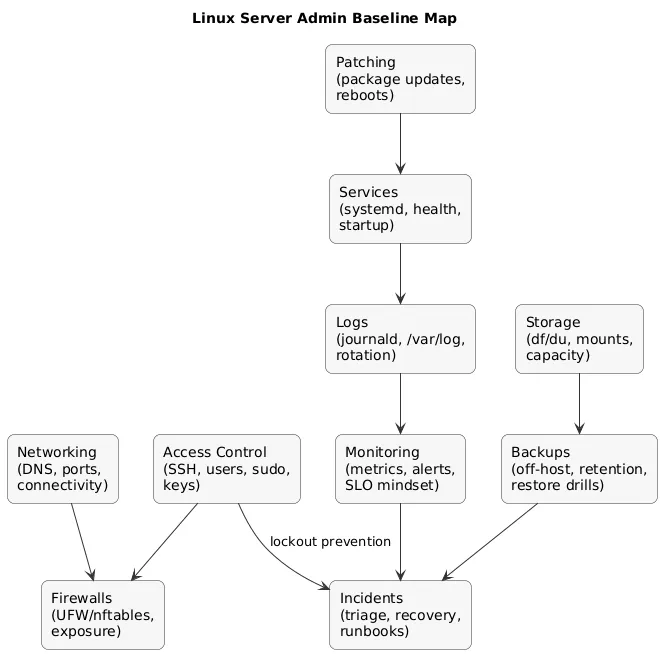
A good baseline usually includes:
- Access control: SSH, users/groups, sudo, and key rotation.
- Patching: security updates, maintenance windows, and safe reboots.
- Service management: systemd units, restarts, health checks, and startup behavior.
- Logs and troubleshooting: journald, /var/log, log rotation, and root cause workflow.
- Networking: ports, firewall policy, DNS, and connectivity verification.
- Storage: disk usage, mounts, file permissions for secrets, and growth planning.
- Backups: off-host backups and periodic restore drills.
- Monitoring: alerts before users report problems.
Avoid “hero admin” ops
If the system requires one person’s memory to operate, it is fragile. Write a small runbook and treat changes as repeatable procedures.
2. Day-One Setup Checklist (New Server)
When you provision a new server (VPS/cloud/VM), prioritize locking down access and preventing the most common incidents. The sequence matters.
Day-one priorities (recommended order)
- Update packages (and reboot if required).
- Create a non-root admin user and verify sudo works.
- Harden SSH (keys, disable root login, restrict users).
- Configure firewall (only required inbound ports).
- Confirm time sync (NTP) and timezone.
- Set up monitoring (disk alerts at minimum).
- Confirm backups/snapshots and write a restore note.
Non-negotiable
If the server is reachable over the internet, SSH hardening and firewalling should happen before you install and expose applications.
Minimal “new server” command starter
# Debian/Ubuntu (example)
sudo apt update
sudo apt upgrade -y

# Add user and grant sudo
sudo adduser norbert
sudo usermod -aG sudo norbert

# Check time + sync status
timedatectl status
3. Essential Linux Commands for Admins
These commands cover a large portion of real-world admin work. The key is not memorization—it’s knowing what tool answers which question (disk? process? network? logs?).
| Question | Commands | What to look for |
|---|---|---|
| Is the service running? | systemctl status, ps |
Active state, recent restarts, exit codes |
| What changed recently? | journalctl --since, package logs |
Deploys, updates, config edits |
| Is disk full? | df -h, du -sh |
Partitions > 80–90%, runaway directories |
| Is the port open? | ss -tulpn, curl |
Correct bind address + expected port |
| Why is it slow? |
top/htop, free -h, uptime
|
Load, CPU steal, memory pressure, swapping |
# Quick space triage (largest directories, shallow)
sudo du -xh /var | sort -h | tail -n 20
4. Users, Groups, Permissions (chmod, chown, sudo)
A secure server starts with a clean ownership model: one user per human, groups as boundaries, and least privilege for services and files.
- Users: individual accounts; avoid shared “admin” logins.
- Groups: represent shared access (e.g., deploy, www-data ownership boundaries).
- Secrets: restrict access to config files containing keys/tokens (tight perms, owned by service user).
# Ownership example for an app directory
sudo chown -R appuser:appgroup /srv/myapp
sudo chmod -R u=rwX,g=rX,o= /srv/myapp
chmod rule
Prefer groups and targeted permissions over broad 777.
“It works” is not a security strategy.
5. SSH Hardening: Keys, Root Login, and Access Control
SSH is your front door. Most opportunistic attacks are simple brute-force and credential stuffing. A safe baseline reduces that noise and makes unauthorized access significantly harder.
SSH hardening flow (diagram)
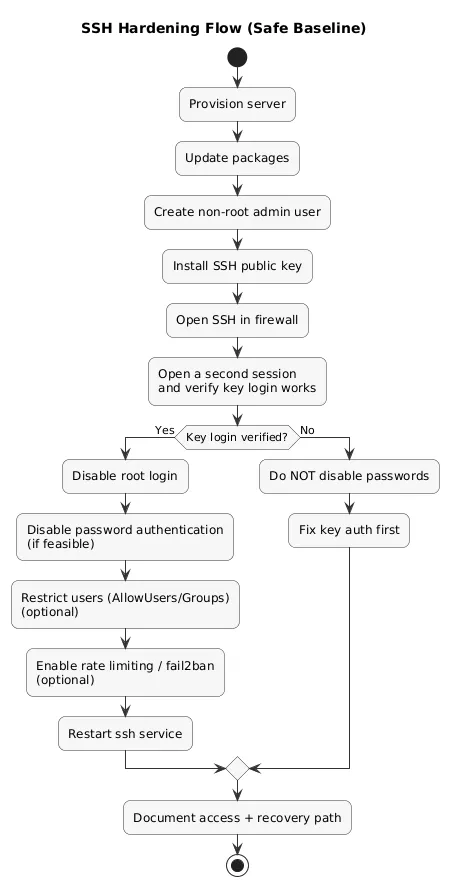
Baseline SSH controls (recommended)
- Use SSH keys (avoid password auth when feasible).
- Disable root login and use sudo.
- Restrict access (AllowUsers / AllowGroups) if you have a stable admin set.
- Rate limiting / fail2ban to reduce brute-force attempts.
- Keep OpenSSH updated as part of patching routine.
# Edit SSH server config
sudo nano /etc/ssh/sshd_config

# Common baseline settings (example)
# PermitRootLogin no
# PasswordAuthentication no
# PubkeyAuthentication yes
# AllowUsers norbert

sudo systemctl restart ssh
Do this safely
Before disabling password auth, verify you can log in with your SSH key in a second session. Locking yourself out is an avoidable incident—especially on remote servers.
6. Package Management and Patching (apt, dnf/yum)
Patching is one of the highest-leverage admin habits. Treat it like a routine, not a panic response. The objective is steady risk reduction with minimal downtime.
Practical patching pattern
- Schedule: weekly or bi-weekly maintenance window for small servers.
- Reboots: plan for kernel updates; reboots are normal (unplanned reboots are the issue).
- Change awareness: know which services are impacted; keep a minimal changelog.
- Automation: consider automatic security updates once your baseline is stable.
# Debian/Ubuntu
sudo apt update
sudo apt upgrade -y

# RHEL/Fedora family (example)
sudo dnf update -y
Operational rule
Patch on a schedule. Emergency patching is stressful and error-prone.
7. Services with systemd (systemctl basics)
systemd controls background services (web servers, databases, agents). Your main goals: confirm health, restart safely, and ensure correct behavior on reboot.
# Status and lifecycle
sudo systemctl status nginx
sudo systemctl restart nginx
sudo systemctl enable nginx
sudo systemctl disable nginx

# See recent failures quickly
systemctl --failed
Production habit
Prefer services with clear unit files, predictable restart behavior, and logging to journald. A stable service definition is part of stability.
8. Logs and Troubleshooting (journalctl + /var/log)
When something breaks, logs are usually the fastest path from “symptom” to “cause”. Pair logs with a simple workflow: identify the failing component, confirm recent changes, validate assumptions (ports, disk, DNS).
Where logs live
-
journald: query with
journalctl(most modern distros). - /var/log: traditional log files (varies by distro and apps).
- App logs: may be files, journald, or a logging agent depending on deployment.
# View logs for a service
sudo journalctl -u nginx --since "1 hour ago" --no-pager

# Follow logs live
sudo journalctl -u nginx -f
Log rotation (prevents disk incidents)
Disk-full incidents are frequently caused by logs that grow without bounds. Ensure your system rotates logs (commonly via logrotate) and that applications do not bypass rotation with custom paths.
Troubleshooting loop
Symptoms → logs → hypothesis → minimal change → verify → document.
9. Networking Basics (IP, DNS, ports, connectivity)
Many incidents are networking shape-shifters: DNS looks like downtime,
firewall looks like app failure, and a service binding to
127.0.0.1 looks like a “broken port”.
- Listen ports:
ss -tulpn -
IP config:
ip a,ip r -
DNS:
dig,resolvectl status -
Connectivity:
curl(service probes), traceroute tools as available
# Confirm a service is listening on expected interface/port
sudo ss -tulpn | grep -E ":(22|80|443)\b"

# Local HTTP probe
curl -I http://localhost
10. Firewalls and Exposure (UFW/nftables/iptables)
Firewalling is about minimizing exposure. The default posture should be: deny inbound by default, allow only what you intend to serve publicly.
Beginner-friendly UFW example
sudo ufw allow OpenSSH
sudo ufw allow 80/tcp
sudo ufw allow 443/tcp
sudo ufw enable
sudo ufw status verbose
Avoid lockout
Always allow SSH before enabling a firewall rule set on a remote server.
Exposure checklist
- Only expose ports you can name and justify.
-
Prefer internal binding (
127.0.0.1/ private IP) for databases and admin panels. - Use TLS for public HTTP endpoints and keep certificate renewal reliable.
11. Storage and Filesystems (df, du, mounts, backups)
Storage issues are common because they are silent until they aren’t. Disk pressure can break databases, logging, package installs, and even SSH sessions in worst cases.
- Free space:
df -h - Top consumers:
du -sh - Block devices:
lsblk -
Mounts:
/etc/fstaband mount points; verify after reboots
df -h
sudo du -sh /var/* | sort -h
Preventive control
Disk alerts are among the highest ROI monitoring checks. Alert early (e.g., 80%) so you can respond calmly.
12. Cron, timers, and scheduled jobs
Scheduled jobs are how you automate hygiene: backups, cleanup, certificate renewal checks, and periodic reports. Cron is classic; systemd timers add visibility through system logs.
# View cron entries (user)
crontab -l

# List systemd timers
systemctl list-timers
13. Monitoring Basics (CPU, RAM, disk, logs, alerts)
Monitoring is about shortening time-to-detection. The earlier you detect problems, the smaller they are. Start with a minimal set that maps to real incidents.
Minimum viable monitoring (small server)
- Disk usage: thresholds + trend awareness.
- Service health: checks for critical services (web, DB, queue, reverse proxy).
- Resource pressure: CPU/load, memory, swapping.
- Auth anomalies: spikes in failed logins.
- Backup success: alert on failed jobs or stale backups.
# Quick triage snapshot
uptime
free -h
top
Alert philosophy
Alert on symptoms that require action, not on everything that changes. Noise trains you to ignore alerts.
14. Backups and Restore Drills (What matters most)
A backup is only real if restores work. Treat backups as an operational system with ownership, schedules, retention rules, and periodic restore drills.
Backup → restore loop (diagram)
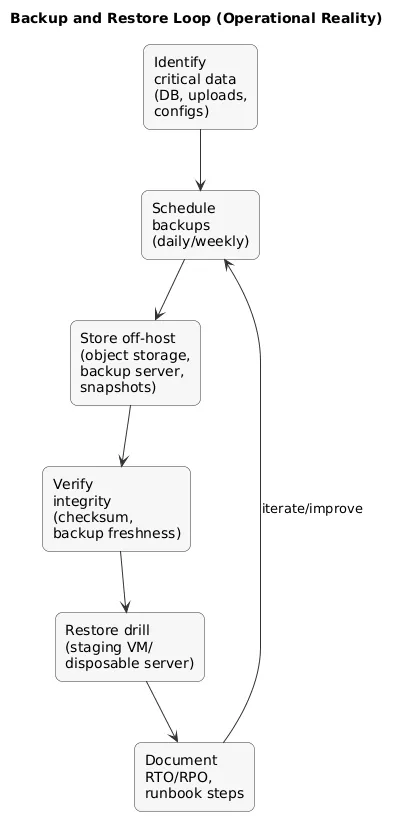
What to back up (practical priority order)
- Stateful data: databases, uploads, persistent volumes, app state directories.
- Configuration: service configs, environment files (without leaking secrets), systemd units, firewall rules.
- Infrastructure metadata: DNS, certificates, and access notes (how to regain access).
Restore drill checklist
- Restore to a staging VM or a disposable server.
- Validate application start-up and data integrity.
- Measure time-to-restore (your real RTO) and write it down.
- Document the exact commands and prerequisites.
Backups are not enough
You need a restore procedure: who runs it, how long it takes, and how you validate data integrity after restore.
15. Practical Hardening Baseline (Beyond SSH)
Beyond SSH and firewalls, focus on a few high-impact controls that reduce the most common real-world risks. Keep the baseline simple and repeatable.
- Automatic security updates: consider enabling them once stable; verify reboot requirements.
- Reduce attack surface: uninstall/disable unused services and packages.
- Secrets hygiene: restrict permissions; avoid world-readable config files.
- App isolation: run apps as non-root service users; avoid binding privileged ports directly where possible.
- MAC controls: if your distro uses SELinux/AppArmor, understand the basics rather than disabling by default.
- Change logging: track config changes; a simple changelog is better than none.
Infrastructure as code
Even for one server, documenting setup steps (or using Ansible/Terraform) makes recovery and scaling dramatically easier.
16. Common Beginner Mistakes (And How to Avoid Them)
- Using root for everything: high risk. Fix: sudo + per-user admin accounts.
- Overexposing services: accidental data leaks. Fix: firewall + bind internal services to localhost/private IP.
- Skipping patching: easy compromise path. Fix: patch schedule and reminders/automation.
- No monitoring: outages discovered late. Fix: disk + service checks + basic alerts.
- No restore testing: backup surprises. Fix: periodic restore drills.
- Ignoring log growth: disk-full outages. Fix: log rotation + alerting + retention.
17. Linux Server Admin Checklist
Use this as a baseline for a small production server:
- Access: SSH keys, root login disabled, access restricted, recovery path known.
- Users: per-person accounts, sudo membership controlled, no shared credentials.
- Firewall: only required ports open; internal services not publicly exposed.
- Updates: regular patch schedule; reboots handled intentionally.
- Services: systemd units healthy; restart behavior understood.
- Logs: journalctl competency; log rotation in place; auth anomalies watched.
- Storage: disk alerts configured; cleanup and retention plan exists.
- Backups: off-host backups; restore drill documented and repeated.
- Monitoring: key metrics + service checks; alerts actionable (low noise).
- Docs: a short runbook for common tasks and incidents.
Fast win
Create a single “server runbook” file: access details, service list, ports, backup location, and common troubleshooting commands.
18. FAQ: Linux Admin Basics
Should I disable SSH password authentication?
If you can reliably use SSH keys and you have a recovery method (console access), yes—key-based auth significantly reduces brute-force risk.
Where should my application logs go?
Ideally to journald (systemd service logs) or to files under /var/log with rotation. Centralized logging is a strong next step for production.
How often should I patch a Linux server?
Many teams patch security updates weekly or bi-weekly and patch critical vulnerabilities faster. The right schedule depends on exposure and risk.
What is the most common Linux server outage cause?
Disk-full events are extremely common (logs, caches, backups, runaway files). Disk monitoring and log rotation prevent most of them.
Do I need configuration management for one server?
It is not mandatory, but even a small Ansible playbook or documented setup steps can save hours during recovery or migration.
Key Linux terms (quick glossary)
- SSH
- Secure Shell: the standard protocol for remote command-line access to servers.
- sudo
- A mechanism to run commands with elevated privileges as an authorized user.
- systemd
- The init system and service manager on many modern Linux distributions.
- systemctl
- The command-line tool used to control systemd services (start/stop, status, enable).
- journalctl
- The command-line tool used to query and follow logs stored by journald.
- UFW
- Uncomplicated Firewall: a user-friendly interface to manage firewall rules on Ubuntu and related distributions.
- Fail2ban
- A tool that bans IPs after repeated failed login attempts, helping reduce brute-force attacks.
- NTP
- Network Time Protocol: keeps server clocks accurate for logs and security.
- Log rotation
- Policies that rotate/compress/delete logs so they do not fill disks over time.
Worth reading
Recommended guides from the category.