A ransomware incident can turn a freelancer's entire business into a recovery project. One laptop may contain current client deliverables, invoices, source code, design files, browser sessions, cloud credentials, tax documents, contracts, and the tools required to communicate with customers.
The practical objective is therefore not simply to “install antivirus.” Ransomware readiness means being able to lose access to the primary computer and still recover essential work without trusting the affected device or depending on a criminal to return the files.
Design for recovery, not perfect prevention
Assume that one protective layer can eventually fail. Keep important accounts difficult to take over, reduce what malware can reach, and maintain recovery copies that remain usable even when the primary laptop and synchronized files are damaged.
1. Why ransomware is especially disruptive for freelancers
A larger organization may have separate IT, finance, security, legal, and customer-support functions. A freelancer may be all of them at once.
Losing one computer or cloud identity can therefore affect several parts of the business simultaneously.
Typical freelancer impact
- Current client work becomes unavailable.
- Invoices, contracts, and accounting documents may be inaccessible.
- Source repositories or design assets may be damaged or encrypted.
- Cloud-synchronized folders may receive unwanted file changes.
- Stored browser sessions may expose additional services.
- Client credentials stored locally may become compromised.
- Deadlines may be missed while the device is rebuilt.
- Clients may require notification when their information is affected.
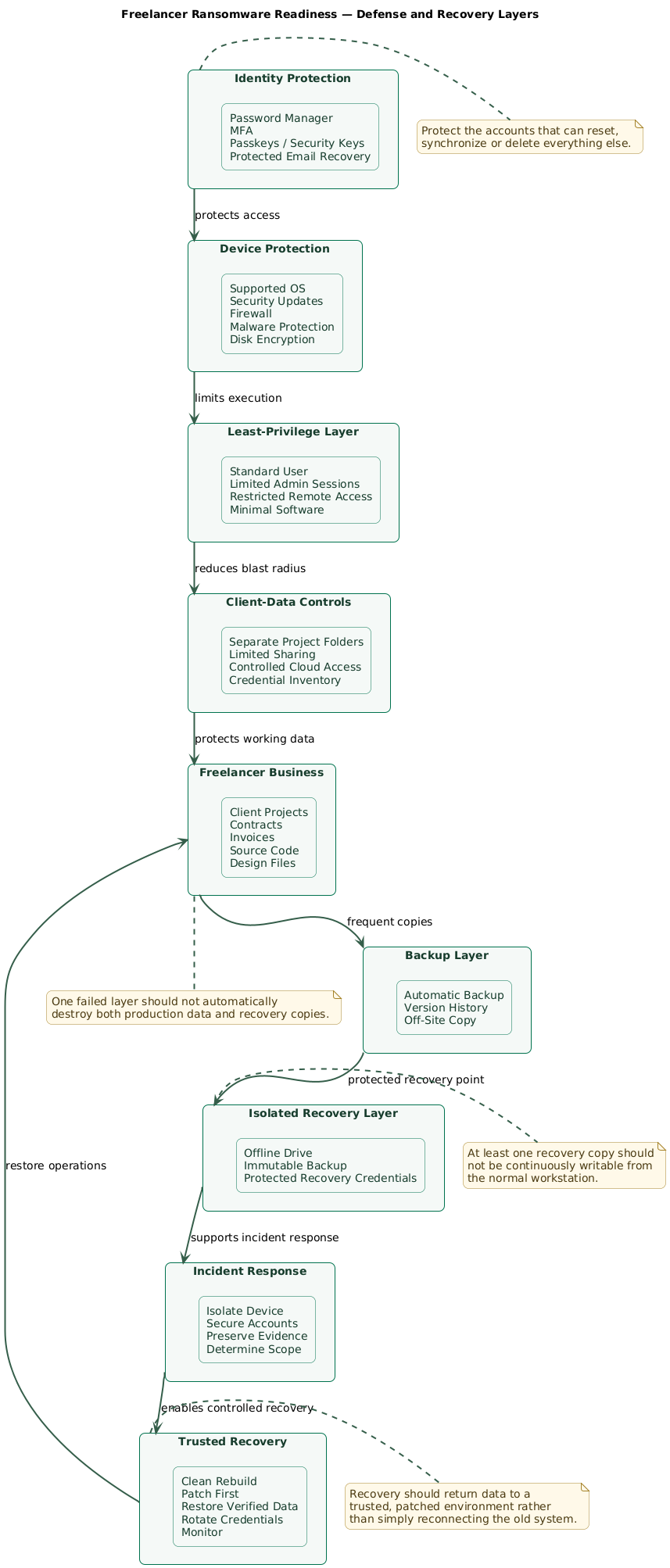
Freelancer ransomware-readiness layers (diagram)
Ransomware also increasingly overlaps with data theft. Even when files can be restored, you may still need to determine whether an attacker accessed confidential client or business information.
A backup solves availability, not every incident consequence
A clean backup can restore files, but it cannot revoke a stolen password, remove copied client data from an attacker, or repair a compromised email account. Recovery therefore needs both data and identity controls.
2. Identify what you must be able to recover
Before choosing backup products, identify the information and services required to restart the business.
Create a critical-data inventory
| Asset | Example | Recovery priority |
|---|---|---|
| Current client work | Code, video, design, reports, documents | Critical |
| Business administration | Invoices, contracts, taxes, expenses | High |
| Credentials | Password manager, recovery codes, SSH keys | Critical |
| Communication | Email, client portals, support systems | Critical |
| Environment | Application settings, scripts, configurations | Medium to High |
| Archive | Completed projects and old deliverables | Medium |
Ask two questions for every critical item
- Where is the working copy?
- Where is a recovery copy that ransomware on this device cannot easily modify?
If the answer to both questions points to the same laptop or the same continuously synchronized folder, the recovery design needs improvement.
Identify recovery dependencies
Files alone may not restore the business. Record the services required to use them.
- Password manager.
- Primary email.
- Cloud-storage account.
- Domain and hosting providers.
- Source-control account.
- Payment and banking services.
- Accounting platform.
- Client portals.
- Software license accounts.
- MFA and account-recovery methods.
3. Build backups that can survive ransomware
A backup is valuable only if it remains available after the incident and can actually be restored.
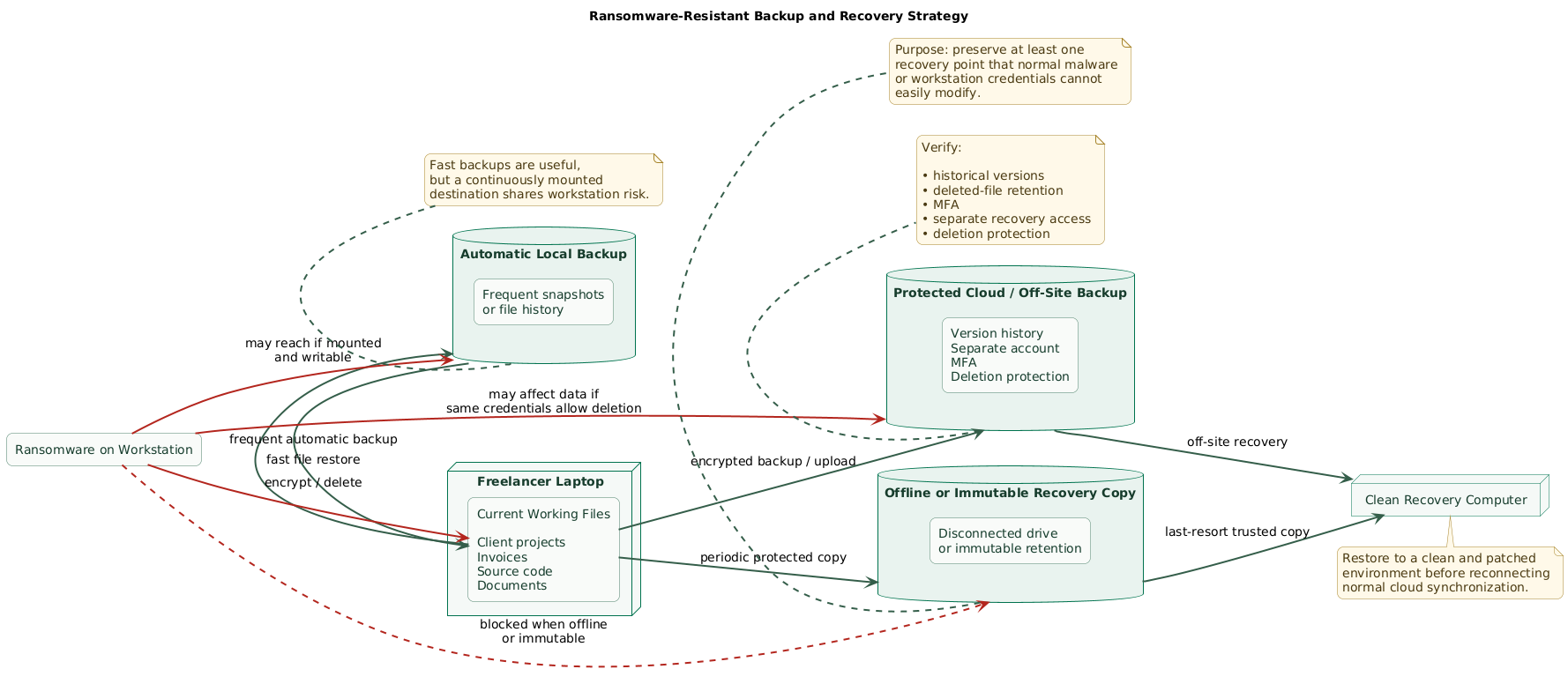
For a freelancer, a practical design is to keep multiple copies across different failure domains, with at least one recovery copy that normal workstation activity cannot continuously rewrite or delete.
Ransomware-resistant backup strategy (diagram)
Layer 1: the working copy
This is the current project data on the laptop, desktop workstation, NAS, or cloud workspace. It is optimized for daily access, not for disaster recovery.
Layer 2: automatic backup
Use an automatic local or cloud backup that captures changes frequently. This reduces the amount of work lost between backup points.
The backup should retain historical versions or snapshots so one unwanted change does not immediately replace every useful recovery point.
Layer 3: isolated recovery copy
Keep at least one important recovery copy offline, immutable, or otherwise protected from ordinary workstation credentials and deletion.
Examples include:
- An external drive disconnected after backup.
- A backup destination with immutable retention.
- An offline encrypted archive stored separately.
- A cloud backup account with protected historical versions and separate access controls.
A permanently connected drive is reachable storage
An external drive that remains mounted all day may be modified by software running under the same user context. Disconnect removable recovery media after the backup job when its purpose is to provide an isolated copy.
Protect backup accounts separately
- Use a unique backup-service password.
- Enable MFA.
- Prefer phishing-resistant authentication when supported.
- Do not reuse the same administrator credentials everywhere.
- Protect recovery codes separately.
- Enable deletion protection or immutable retention when available.
Cloud sync is not automatically an independent backup
Synchronization is excellent for productivity, but its job is often to propagate file changes between systems. If files are encrypted, corrupted, or deleted, those changes may also synchronize.
Verify exactly how long version history and deleted-file recovery are retained. Treat those features as one recovery layer rather than assuming synchronization alone is sufficient.
Encrypt sensitive backups
Backup media can be lost or stolen. Encrypt copies containing client files, contracts, credentials, or other confidential information and keep the recovery information separate from the protected media.
4. Protect the accounts that control your business
Ransomware does not always begin with malicious software executed locally. Stolen credentials can provide access to email, cloud storage, remote administration, source control, hosting, or backup systems.
Enable MFA in this order
- Primary email.
- Password manager.
- Cloud storage and backup services.
- Domain registrar and DNS.
- Hosting and cloud infrastructure.
- Source control and CI/CD.
- Financial and payment services.
- Client portals.
- Remote-access services.
Prefer phishing-resistant authentication
Where practical, use passkeys or hardware-backed security keys for the accounts that protect the rest of the business. These methods can provide stronger protection against credential phishing than manually entered one-time codes.
Protect account recovery
- Keep recovery email addresses current.
- Remove old telephone numbers.
- Keep backup security keys in a separate secure location.
- Protect recovery codes.
- Review trusted devices and sessions.
- Remove old application passwords and API tokens.
Your email account is part of the recovery system
If an attacker controls your email, they may be able to reset many other accounts. Protect email as carefully as the password manager and backup service.
5. Reduce the chance ransomware reaches your files
Recovery is essential, but reducing initial access remains worthwhile. Focus on controls that remove common attack paths.
Keep software supported and updated
- Install operating-system security updates.
- Update browsers automatically.
- Update document and PDF software.
- Update development tools and runtimes.
- Remove applications you no longer use.
- Install firmware updates from trusted sources.
Use a standard account for normal work
When practical, perform ordinary browsing, email, document editing, and development with a standard user account. Elevate privileges only when a system change genuinely requires administrator access.
Keep built-in security controls enabled
- Host firewall.
- Real-time malware protection.
- Application and download reputation controls.
- Browser phishing and malicious-site protection.
- Full-disk encryption.
- Automatic screen locking.
Review remote-access software
Remove remote-support, remote-desktop, or administration tools you no longer need. Secure required remote access with MFA and avoid exposing workstation services directly to the internet.
Limit risky document behavior
- Be cautious with unexpected archives and attachments.
- Verify unexpected invoices and file-sharing notifications.
- Do not enable macros merely because a document requests it.
- Verify download sources for client tools and plugins.
- Treat password-protected unexpected archives as suspicious rather than automatically trustworthy.
Reduce what one compromised account can reach
Do not keep permanent administrator sessions, infrastructure keys, backup administration, client credentials, and personal accounts all accessible from one browser profile without considering the blast radius.
6. Protect client files and shared workspaces
Freelancers frequently work with information that belongs to somebody else. Your recovery plan should therefore include confidentiality and communication, not only file restoration.
Separate client work where practical
- Use dedicated project folders.
- Keep permissions limited to people who need access.
- Use client-provided systems when contracts require them.
- Avoid copying complete datasets when only a subset is required.
- Remove local copies after the retention requirement ends.
Know what is synchronized
A compromised workstation may have access to multiple cloud folders, network drives, repository credentials, mounted backup destinations, and client portals.
Periodically review which remote systems the laptop can modify without additional authentication.
Document client notification dependencies
Record which clients have contractual incident-notification requirements and how to reach them when your normal laptop or email account is unavailable.
Do not promise that restored files mean no breach occurred
Ransomware and data theft can happen in the same incident. Successful restoration proves that you recovered data; it does not by itself prove that no information was accessed or copied.
7. Create an offline recovery kit
During an incident, the affected laptop may be unavailable and the password manager, email, or cloud account may also require recovery. Maintain a small emergency package outside the primary device.
Include
- Backup-service name and recovery procedure.
- Location of offline recovery media.
- Disk-encryption recovery-key location.
- Password-manager recovery procedure.
- Backup MFA methods.
- Device serial number.
- Important software license information.
- Client emergency contact details.
- Hosting and domain provider names.
- Insurance or professional incident-response contacts when applicable.
- Steps for revoking important sessions and tokens.
Example recovery record
Freelancer ransomware recovery record

Primary work device:
-

Device serial number:
-

Primary email:
-

Password manager:
-

Backup provider:
-

Latest tested backup:
-

Offline / isolated backup location:
-

Disk-encryption recovery location:
-

Backup MFA method:
-

Domain / hosting provider:
-

Source-control provider:
-

Critical client contacts:
-

Financial / payment providers:
-

Incident-response contact:
-

Insurance contact:
-

Last restore test:
-

Next review date:
-
Do not put every recovery secret on one sheet
The recovery kit should tell you how to regain control without becoming a master key that gives anyone holding one document immediate access to every account.
8. What to do when ransomware is suspected
Warning signs include a ransom note, rapidly renamed or unreadable files, unfamiliar file extensions, unexpected encryption activity, security-tool alerts, unusual processor or disk activity, or many synchronized files changing without explanation.
Ransomware first-response and recovery flow (diagram)

1. Isolate the affected device
- Disconnect Ethernet.
- Disable Wi-Fi.
- Disconnect from network storage.
- Disconnect removable backup media.
- Stop ordinary synchronization where you can do so safely from another trusted device.
If you cannot isolate an actively affected device from networks using normal controls, powering it down may be necessary to limit further spread. Preserve the device state when professional forensic assistance is likely and safe isolation is possible.
2. Do not connect recovery drives
Keep offline backups disconnected until you have a trusted recovery environment. Connecting a clean recovery drive to an infected system can expose the backup.
3. Secure critical identities from another device
From a trusted computer or phone:
- Secure primary email.
- Secure the password manager.
- Review cloud-storage sessions.
- Review backup administration.
- Review hosting and source-control accounts.
- Revoke suspicious sessions and devices.
4. Preserve evidence
Record:
- The time the problem was noticed.
- Photographs or screenshots of the ransom message.
- Ransom-note filenames.
- Examples of affected file extensions.
- Security alerts.
- Recent suspicious emails or downloads.
- Systems and cloud folders potentially affected.
5. Determine the impact
Check whether the event appears limited to one device or also affected:
- External drives.
- NAS storage.
- Cloud-synchronized folders.
- Shared client folders.
- Source repositories.
- Other computers.
- Backups.
- Online accounts.
6. Contact relevant parties
Depending on what was affected, you may need to contact clients, an employer, platform providers, cyber-insurance contacts, legal or privacy advisers, incident-response specialists, or appropriate authorities.
Do not rush into deleting or restoring
Immediate restoration over the affected machine can destroy useful evidence and may restore data into the same compromised environment. Establish a trusted recovery path first.
9. Restore safely instead of simply reconnecting everything
The safest recovery path is usually to restore into a clean, patched environment rather than trusting a system that still contains unknown changes.
Start with a trusted system
Depending on incident severity, this may mean:
- Resetting or reinstalling the operating system.
- Rebuilding the workstation from trusted installation media.
- Replacing the storage device.
- Using a separate temporary computer.
- Receiving professional incident-response assistance.
Patch before restoring business data
- Install the supported operating system.
- Install security updates.
- Update firmware where appropriate.
- Enable disk encryption.
- Enable the firewall and malware protection.
- Install only required applications from trusted sources.
- Configure strong account authentication.
- Then connect the recovery source.
Choose a recovery point carefully
A recent backup is not necessarily a clean backup. If the original compromise began several days before visible encryption, the most recent backup may contain malicious files, unwanted startup items, or other artifacts.
Restore data deliberately and investigate suspicious executable files, scripts, macros, installers, browser extensions, and application configuration.
Rotate credentials
Change or revoke credentials that may have been available on the affected device, especially:
- Email sessions.
- Password-manager sessions.
- Cloud-storage sessions.
- API keys.
- SSH keys.
- Source-control tokens.
- Hosting credentials.
- VPN credentials.
- Client portal sessions.
Reconnect gradually
Restore the essential environment first, verify its health, then add client data, cloud synchronization, developer credentials, external drives, and other integrations in stages.
10. Test whether your recovery plan actually works
A backup dashboard showing a green check mark is useful, but a successful restore is stronger evidence that the recovery path works.
Quarterly mini-test
- Create a small test project folder.
- Allow normal backups to capture it.
- Wait until an isolated recovery copy is also created.
- Delete the local test folder.
- Restore it to a separate location.
- Open the restored files.
- Record the restoration date and duration.
Annual larger test
Periodically test whether you could recover important business functions on a replacement computer.
Verify that you can regain access to:
- Password manager.
- Primary email.
- Cloud storage.
- Source repositories.
- Client contact information.
- Accounting data.
- Critical project files.
- Software licenses.
Record recovery time
Knowing that restoration works is important. Knowing whether it takes 30 minutes or three days is also important when agreeing to client deadlines.
Simple readiness target
You should be able to lose the main laptop today and explain where your important data is backed up, how to access a protected recovery copy, how to regain control of your critical accounts, and what you would do before reconnecting restored files.
11. Copy/paste ransomware-readiness checklist
Ransomware readiness for freelancers

Critical data
- List current client projects.
- List contracts, invoices, accounting files, and tax documents.
- List source repositories and design assets.
- Identify confidential client information.
- Identify the services required to access important work.
- Record how quickly each category must be restored.

Backups
- Keep multiple copies of critical data.
- Keep copies in different failure domains.
- Maintain at least one offline or otherwise strongly protected recovery copy.
- Disconnect removable recovery drives after backup.
- Enable version history or snapshots where available.
- Protect cloud backup administration with MFA.
- Use a unique backup-service password.
- Enable immutable or deletion-resistant retention where appropriate.
- Encrypt backups containing confidential information.
- Keep backup recovery credentials separate.
- Check backup status regularly.
- Test restoration regularly.
- Record the last successful restore test.

Cloud storage
- Determine which folders synchronize automatically.
- Understand version-history retention.
- Understand deleted-file retention.
- Review shared folders.
- Review devices with synchronization access.
- Review third-party applications connected to cloud storage.
- Do not assume synchronization alone is an independent backup.

Critical accounts
- Enable MFA on primary email.
- Enable MFA on the password manager.
- Enable MFA on cloud storage.
- Enable MFA on the backup service.
- Enable MFA on hosting and domain accounts.
- Enable MFA on source control.
- Enable MFA on financial services.
- Enable MFA on client portals where supported.
- Prefer passkeys or security keys where practical.
- Keep backup authentication methods separately.
- Review account recovery information.
- Review active sessions and trusted devices.

Workstation
- Use a supported operating system.
- Install operating-system security updates.
- Update browsers automatically.
- Update document and PDF software.
- Update development tools and runtimes.
- Install firmware updates from trusted sources.
- Keep the host firewall enabled.
- Keep real-time malware protection enabled.
- Keep application and download reputation controls enabled.
- Enable full-disk encryption.
- Use automatic screen locking.
- Use a standard user account for normal work where practical.
- Remove unused remote-access tools.
- Remove unused software and browser extensions.

Email and downloads
- Verify unexpected file-sharing invitations.
- Verify unexpected invoices and attachments.
- Be cautious with password-protected archives.
- Do not enable document macros merely because a file asks you to.
- Download software only from trusted stores or publishers.
- Report suspicious MFA prompts and password-reset messages.

Client data
- Separate client projects into clear folders.
- Limit access to client workspaces.
- Remove unnecessary local copies.
- Review contractual incident-notification obligations.
- Keep emergency client contact information outside the main laptop.
- Know which client systems can be accessed from the workstation.
- Review stored client credentials and tokens.

Recovery kit
- Record the backup provider.
- Record the location of offline recovery media.
- Record the disk-encryption recovery-key location.
- Document password-manager recovery.
- Store backup MFA methods securely.
- Record the work-device serial number.
- Record domain and hosting providers.
- Record source-control provider.
- Record important client contacts.
- Record incident-response and insurance contacts where applicable.
- Review the recovery kit periodically.

If ransomware is suspected
- Disconnect the affected device from Ethernet.
- Disable Wi-Fi.
- Disconnect network storage.
- Disconnect removable backup media.
- Stop affected synchronization where safely possible.
- Do not attach clean recovery media to the suspected device.
- Secure email from a trusted device.
- Secure the password manager.
- Review cloud-storage sessions.
- Review backup administration.
- Preserve screenshots and ransom notes.
- Record the time the incident was discovered.
- Identify affected devices and storage.
- Check whether client data may be involved.
- Contact appropriate clients or organizations when required.
- Obtain professional incident-response or legal help when needed.

Recovery
- Rebuild or reset the affected device from a trusted source.
- Patch the operating system before restoring data.
- Enable firewall and malware protection.
- Enable full-disk encryption.
- Install only required trusted software.
- Verify the chosen backup predates the compromise where possible.
- Restore data into a clean environment.
- Review suspicious executable files and scripts.
- Rotate credentials exposed on the affected device.
- Revoke old sessions and tokens.
- Reconnect cloud synchronization gradually.
- Monitor accounts and devices after recovery.
- Document what caused the incident and what should change.

Recovery testing
- Restore a test file regularly.
- Test restoration from the isolated backup.
- Confirm recovery credentials are available.
- Confirm backup MFA works.
- Test password-manager recovery.
- Record restoration time.
- Periodically test recovery using another computer.
12. FAQ
Is cloud synchronization enough protection against ransomware?
Not automatically. Synchronization may propagate changed, encrypted, or deleted files. Check whether the service provides version history and deleted-file recovery, and maintain another recovery layer that ordinary workstation activity cannot easily modify.
How many backups should a freelancer keep?
The exact number depends on the business, but one working copy and one continuously connected backup create unnecessary shared risk. Maintain multiple copies across different failure domains and keep at least one offline or otherwise strongly protected recovery copy.
Which accounts should have MFA first?
Begin with primary email, the password manager, cloud storage, backup administration, domain and hosting accounts, source control, financial services, and any account that can reset or access other important systems.
What should I do first if I see a ransomware note?
Isolate the affected device from networks. Disconnect Ethernet, disable Wi-Fi, and keep clean recovery media away from it. Then secure important online identities from a trusted device, preserve evidence, determine the scope, and begin a controlled recovery process.
Should I pay the ransom?
Payment does not guarantee that files will be restored correctly or that stolen information will be deleted. Preserve evidence and evaluate the incident with appropriate professional, legal, insurance, client, or authority involvement before making consequential decisions.
Can ransomware infect my backups?
A backup that is writable from the affected system may also be encrypted, deleted, or otherwise damaged. That is why an offline, immutable, or separately protected recovery copy is important.
Key terms (quick glossary)
- Ransomware
- Malicious software or related attack activity that denies access to systems or data, commonly through encryption, and demands payment or another action from the victim.
- Data extortion
- Threatening to publish, sell, or misuse stolen information to pressure a victim, sometimes alongside file encryption.
- Backup
- A copy of data maintained so information can be recovered after loss, corruption, deletion, or another incident.
- Offline backup
- A backup that is not continuously connected to or writable from the normal production device or network.
- Immutable backup
- A backup protected so stored recovery data cannot be altered or deleted during a defined retention period through normal administrative access.
- Recovery point
- A specific historical state of data selected for restoration.
- MFA
- Multifactor authentication, which requires more than one distinct authentication factor to gain access.
- Phishing-resistant authentication
- Authentication designed to resist credential capture and replay through fraudulent websites, commonly using cryptographic methods such as passkeys or compatible security keys.
- Isolation
- Disconnecting a potentially compromised system from networks and other resources to reduce further spread or damage.
- Least privilege
- Giving an account or application only the access required to perform its intended work.
- Restore test
- A controlled recovery of backed-up data used to verify that the backup is readable and the recovery process works.
- Recovery time
- The amount of time required to return important business functions to an acceptable operational state after an incident.
Worth reading
Recommended guides from the category.