Multifactor authentication is one of the most useful account-security improvements you can make, but not every MFA method provides the same protection against phishing.
A six-digit code generated by an authenticator app is significantly better than relying on a password alone. The problem is that you can still type that code into the wrong website. A convincing phishing site can capture the password and immediately relay the fresh code to the legitimate service.
Passkeys and FIDO security keys change that model. Instead of asking you to manually transfer a reusable password or temporary code, the browser and authenticator perform a cryptographic exchange tied to the legitimate website.
The important distinction
“Authenticator app” describes software, not one specific security protocol. The same app might generate phishable TOTP codes and also store phishing-resistant passkeys. What matters is the authentication method being used.
1. What phishing-resistant MFA actually means
In practical terms, phishing-resistant authentication is designed so a fraudulent service cannot trick you into handing over an authentication secret or valid authentication result that it can reuse against the real service.
This is different from simply making phishing harder. A user does not need to notice that the logo looks wrong or that one character in the domain name changed. The authentication protocol itself enforces the relationship with the legitimate service.
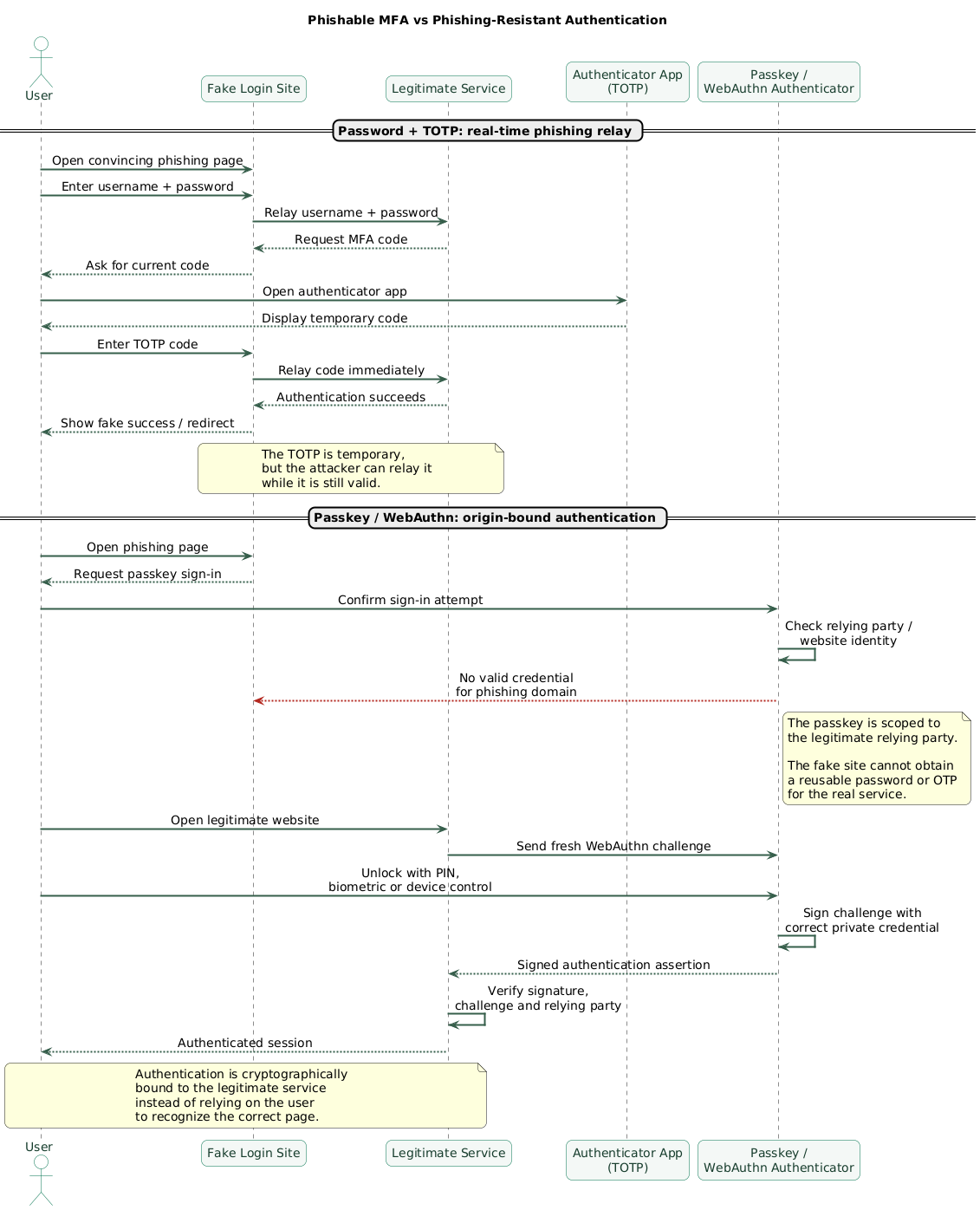
Phishable vs phishing-resistant authentication (diagram)
| Method | Better than password alone? | Phishing-resistant? |
|---|---|---|
| Password only | No additional factor | No |
| SMS code | Yes | No |
| Authenticator-app TOTP | Yes | No |
| Traditional approval prompt | Yes | Generally not equivalent to FIDO/WebAuthn phishing resistance |
| Passkey / WebAuthn | Yes | Yes, when correctly implemented |
| FIDO security key | Yes | Yes, when used with FIDO/WebAuthn |
One-time does not mean unphishable
A TOTP code expires quickly and normally cannot be replayed later, but an attacker can relay it to the real service while it is still valid. Replay resistance and phishing resistance are different properties.
2. Why authenticator-app codes can still be phished
Time-based one-time passwords, usually called TOTP codes, are commonly displayed as six digits that change every 30 seconds.
A normal login looks like this:
- You enter your username and password.
- The site asks for an MFA code.
- You open an authenticator app.
- You read the current code.
- You type it into the website.
The vulnerability is step five. You decide where to type the code.
A real-time phishing relay
- You open a convincing fake login page.
- You enter your password.
- The attacker submits that password to the genuine site.
- The genuine site asks the attacker for the current MFA code.
- The fake page asks you for the code.
- You type the code into the fake page.
- The attacker immediately relays it to the genuine site.
The code worked exactly as designed. It proved possession of the OTP authenticator, but it was not cryptographically tied to the website where you intended to authenticate.
Why TOTP is still useful
This does not make authenticator apps pointless. TOTP still protects against many attacks involving stolen or reused passwords. It also remains widely available and does not depend on cellular reception.
If a service offers password plus TOTP or password alone, enable TOTP. The practical recommendation is to move further toward phishing-resistant authentication when the service supports it.
3. How passkeys stop the usual phishing relay
A passkey uses public-key cryptography rather than a secret that you type into a website.
When a passkey is created, the authenticator creates a key pair. The service receives the public key. The corresponding private credential remains managed by the authenticator or passkey provider.
At sign-in
- The legitimate service sends a fresh authentication challenge.
- The browser identifies the service requesting authentication.
- The appropriate passkey is selected for that relying party.
- You confirm the operation with device unlock, PIN, or biometrics as required.
- The authenticator signs the challenge.
- The service verifies the result with the registered public key.
The important property is that the credential is scoped to the relying party. A phishing domain cannot simply ask the passkey to authenticate to a different legitimate site and receive a reusable password or OTP.
Biometrics do not normally go to the website
When a device asks for a fingerprint, face scan, or local PIN to unlock a passkey, that local check authorizes use of the cryptographic credential. The website receives the authentication result rather than your raw biometric sample.
Why the experience can feel simpler
Stronger authentication does not necessarily mean more typing. A passkey can replace the password-plus-code sequence with one cryptographically protected sign-in confirmation.
4. Synced passkeys vs device-bound security keys
“Passkey” does not always mean that the credential exists on only one physical device.
Synced passkeys
A synced passkey can be made available through a supported passkey provider across authorized devices.
Advantages
- Convenient access from multiple devices.
- Easier recovery after replacing a phone or computer.
- Good user experience for personal accounts.
- Strong phishing resistance when correctly implemented.
Things to consider
- The passkey-provider account becomes important to recovery.
- Devices participating in synchronization need strong local security.
- Organizations may want more control over where privileged credentials exist.
Device-bound passkeys and physical security keys
A credential can instead remain bound to a specific authenticator, such as a physical FIDO security key or another device-bound authenticator.
Advantages
- Clear physical possession requirement.
- Tighter control over where the credential exists.
- Useful for administrator and high-impact accounts.
- Can support higher-assurance organizational designs.
Operational cost
A physical key can be lost, damaged, or left at home. If it protects an important account, register a separate backup authenticator and store it securely.
Do not create a single-key lockout
If one physical security key is the only way to access a critical account, loss of that key becomes an availability incident. Register a tested backup method appropriate to the account's risk.
5. Passkey or authenticator app: which should you choose?
Passkey vs authenticator-app decision tree (diagram)
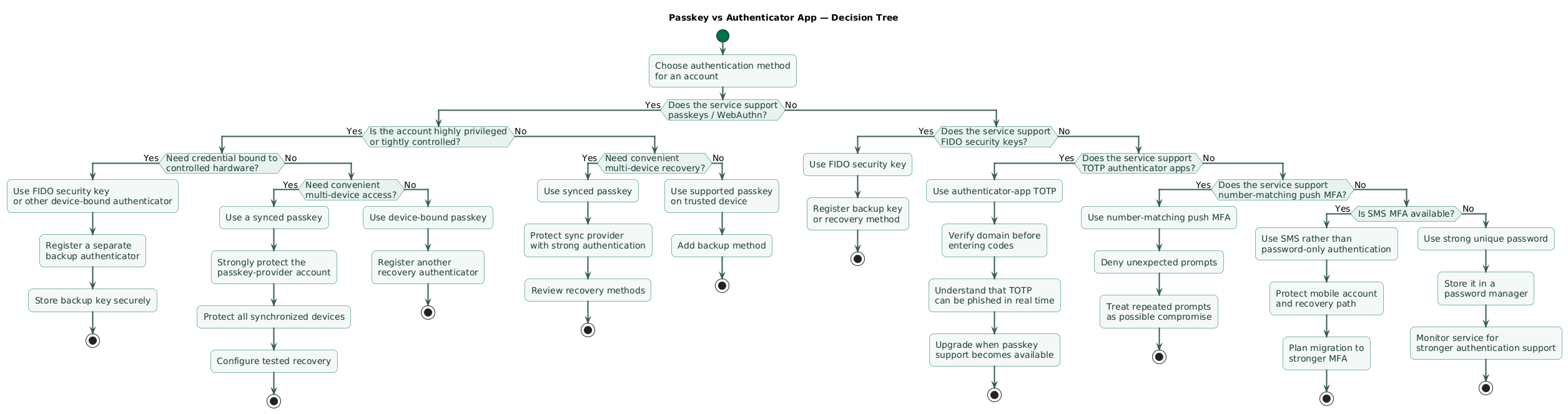
Choose a passkey when
- The service supports passkeys or WebAuthn.
- The account is exposed to meaningful phishing risk.
- You want to eliminate manually entered password-and-code workflows.
- You can establish a reliable recovery method.
- Your devices and browsers support the required passkey workflow.
Prefer a physical security key when
- The account has administrative or infrastructure privileges.
- You want the authentication credential tied to controlled hardware.
- An organization requires managed authenticators.
- Credential portability through consumer synchronization is undesirable.
- You need a stronger physical possession boundary.
Use authenticator-app TOTP when
- The service does not support passkeys or FIDO authentication.
- SMS is the only weaker alternative.
- You need a broadly compatible second factor.
- You understand that the code can still be phished in real time.
Do not disable MFA because passkeys are unavailable
Security upgrades are not all-or-nothing. If an important service supports only TOTP, use TOTP rather than falling back to a password alone.
6. Where push notifications and number matching fit
Some authenticator applications receive approval prompts instead of displaying TOTP codes.
A basic “Approve / Deny” prompt can create authentication-fatigue risk. An attacker who knows the password may repeatedly trigger prompts hoping the user approves one simply to make the notifications stop.
Number matching improves this design
In a number-matching flow, the login screen displays a value that the user must confirm in the authenticator application. This provides more context than a blind approval prompt and reduces accidental approvals.
It is still important not to confuse improved push MFA with origin-bound FIDO/WebAuthn authentication. If phishing-resistant authentication is available for a high-value account, prefer it.
Unexpected MFA prompts are security signals
If you receive an authentication prompt when you are not signing in, deny it and investigate the account. Repeated unexpected prompts may indicate that somebody already knows your password.
7. Recovery methods can become the weakest link
A passkey protects the normal login path. Account recovery is a different path.
If an attacker can bypass the passkey by resetting the account through a weak email account or another vulnerable fallback, the strong primary authenticator does not provide its full expected benefit.
Review these recovery paths
- Recovery email.
- Recovery telephone number.
- Backup codes.
- Alternative MFA methods.
- Previously trusted devices.
- Help-desk or administrator recovery.
- Identity-provider recovery.
- Password reset procedures.
Protect the recovery email first
Email can reset many other accounts. Give the primary email account phishing-resistant authentication whenever the provider supports it.
Store backup codes deliberately
Recovery codes are useful because they can restore access when a device fails. They are also authentication secrets.
Store them in a protected password manager, secure offline location, or another recovery system that remains available if the primary device is lost.
Recovery should be usable but not easier to attack
The best recovery design avoids two extremes: one lost phone should not permanently lock you out, but a weak fallback should not let an attacker bypass your strongest authenticator.
8. Which accounts should be upgraded first?
You do not need to convert every account on the internet in one evening. Start with identities that control other identities, money, infrastructure, confidential data, or business continuity.
Priority 1: accounts that can reset everything else
- Primary email.
- Password manager.
- Main operating-system or device account.
- Central identity provider.
Priority 2: privileged business systems
- Domain registrar and DNS.
- Cloud and hosting administration.
- Source control.
- CI/CD.
- Backup administration.
- Remote-access systems.
Priority 3: financial and sensitive accounts
- Banking.
- Payment processors.
- Accounting services.
- Healthcare portals.
- Government accounts.
- Client portals containing sensitive information.
Priority 4: normal online accounts
Continue moving lower-impact services as support becomes available, but do not delay the high-value accounts while chasing perfect coverage.
9. Migrate without locking yourself out
Phishing-resistant MFA rollout roadmap (diagram)

Step 1: inventory important accounts
Record which accounts support:
- Passkeys.
- FIDO security keys.
- TOTP.
- Push authentication.
- SMS.
- Recovery codes.
Step 2: protect your recovery foundation
Upgrade primary email and password-manager authentication before relying on them to recover dozens of other accounts.
Step 3: register the first passkey
Create the passkey from a trusted, fully updated device. Confirm that the account lists it as an enrolled authentication method.
Step 4: add a backup method
For an important account, register another supported authenticator before removing existing recovery methods.
Examples:
- A second physical security key.
- A synced passkey available through another trusted device.
- A separate device-bound authenticator.
- Protected recovery codes.
Step 5: test from another device
Open a private browsing session or another trusted device and confirm that the new authentication flow works before removing the old method.
Step 6: remove unnecessary weak fallback
After the phishing-resistant path and recovery method are tested, review whether old SMS numbers, obsolete authenticator devices, application passwords, or weaker fallback options remain necessary.
Step 7: repeat for high-impact accounts
Upgrade infrastructure, finance, cloud, development, backup, and other sensitive services before ordinary low-risk accounts.
Do not remove the old method before testing recovery
Authentication migration should reduce takeover risk, not create a preventable lockout. Verify the primary and backup authenticators first.
10. What passkeys do not protect against
Phishing resistance addresses a specific class of authentication attack. It does not make an account or device invulnerable.
A compromised device
Malware controlling an already authenticated device may access files, browser sessions, application data, or perform actions using an existing session without stealing the passkey itself.
Session theft
An attacker who steals a valid authenticated session may be able to bypass the login process until the session expires or is revoked.
Weak account recovery
A passkey does not automatically fix weak fallback procedures.
Malicious actions after authentication
A legitimate account owner can still be tricked into sending money, changing account settings, approving an OAuth application, or disclosing sensitive information after signing in.
Physical device compromise
Protect devices containing passkeys with a strong screen lock, current security updates, encryption, and device-loss recovery controls.
Untrusted OAuth authorization
Strong sign-in does not make every application authorization safe. Review the identity and requested permissions of third-party applications before granting access.
Think in layers
Passkeys strengthen authentication. Updates protect the endpoint, session controls protect authenticated access, authorization limits what accounts can do, and recovery controls determine what happens when the normal login path fails.
11. Copy/paste MFA upgrade checklist
Phishing-resistant MFA upgrade checklist

Understand the current setup
- List important online accounts.
- Identify which accounts can reset other accounts.
- Record current MFA methods.
- Identify SMS-based MFA.
- Identify authenticator-app TOTP.
- Identify push approval methods.
- Identify existing passkeys.
- Identify registered FIDO security keys.
- Review current account-recovery methods.

Prioritize high-impact accounts
- Upgrade primary email first.
- Upgrade the password manager.
- Upgrade the main device or operating-system account.
- Upgrade the central identity provider if applicable.
- Upgrade domain and DNS administration.
- Upgrade cloud and hosting administration.
- Upgrade source control and CI/CD.
- Upgrade backup administration.
- Upgrade financial and payment accounts.
- Upgrade important client portals.

Passkey enrollment
- Use a trusted, updated device.
- Confirm that the legitimate service supports passkeys or WebAuthn.
- Create the passkey through the service's official security settings.
- Confirm that the passkey appears in enrolled authentication methods.
- Give the credential a useful device name where supported.
- Test sign-in in a new browser session.
- Test from another trusted device when appropriate.

Synced passkeys
- Protect the passkey-provider account strongly.
- Enable strong authentication for the sync account.
- Protect every device participating in synchronization.
- Use screen lock and device encryption.
- Remove old or lost devices from the provider account.
- Review account recovery for the passkey provider.

Physical security keys
- Register at least two keys for critical accounts where practical.
- Keep the backup key in a separate secure location.
- Label keys without exposing unnecessary account details.
- Protect the local PIN where the authenticator uses one.
- Test both keys before relying on them.
- Remove lost keys from registered authenticators immediately.

Authenticator-app TOTP
- Continue using TOTP where passkeys are unavailable.
- Never type a code into a site reached through a suspicious message.
- Verify the domain before entering the password or code.
- Protect the authenticator-app device with a strong screen lock.
- Review whether TOTP secrets are backed up or synchronized.
- Remove old authenticator registrations after device migration.
- Do not assume that a one-time code is phishing-resistant.

Push MFA
- Prefer number matching over blind approval when available.
- Deny unexpected authentication prompts.
- Investigate repeated prompts.
- Change the account password if unauthorized prompts indicate password compromise.
- Move high-value accounts to phishing-resistant authentication when supported.

Recovery
- Review recovery email addresses.
- Remove obsolete telephone numbers.
- Protect the recovery email with strong MFA.
- Store backup codes securely.
- Keep at least one tested recovery method for critical accounts.
- Do not rely on one physical security key with no backup.
- Remove obsolete devices and authenticators.
- Review help-desk or administrator recovery procedures for business accounts.

Remove unnecessary fallback
- Confirm passkey sign-in works.
- Confirm the backup authenticator works.
- Confirm recovery codes are available.
- Remove obsolete SMS numbers when no longer required.
- Remove lost or replaced devices.
- Remove obsolete TOTP registrations.
- Revoke unused application passwords.
- Review trusted sessions.
- Review connected OAuth applications.

Device security
- Keep devices receiving or storing authenticators updated.
- Enable full-disk encryption.
- Use automatic screen locking.
- Protect device accounts with strong sign-in.
- Enable remote device-finding or loss controls where appropriate.
- Revoke lost devices quickly.

Periodic review
- Review important account authentication methods quarterly.
- Review registered devices.
- Review security keys.
- Review passkeys.
- Review recovery email and telephone numbers.
- Review active sessions.
- Review third-party application access.
- Replace weaker MFA as services add passkey support.
12. FAQ
Are authenticator-app codes phishing-resistant?
No. A TOTP code can be captured by a fraudulent login page and relayed to the legitimate service while it remains valid. TOTP is still much better than relying on a password alone, but it does not provide the same phishing resistance as FIDO/WebAuthn.
Are passkeys phishing-resistant?
Properly implemented WebAuthn passkeys are designed to be phishing-resistant because the cryptographic credential is scoped to the legitimate relying party. A fraudulent domain cannot obtain a useful authentication result for the real site's credential.
Is a physical security key better than a synced passkey?
Not universally. Synced passkeys combine strong phishing resistance with convenient availability and recovery across trusted devices. Device-bound security keys provide tighter control over where a credential resides and can be preferable for privileged or higher-assurance accounts.
Should I stop using my authenticator app?
No. Keep using authenticator-app TOTP on services that do not yet support phishing-resistant authentication. Upgrade the most important compatible accounts first rather than disabling useful MFA.
Is number matching phishing-resistant?
Number matching improves conventional push MFA by reducing accidental and fatigue-driven approvals, but it should not automatically be treated as equivalent to an origin-bound FIDO/WebAuthn credential. Prefer passkeys or FIDO security keys where phishing resistance is important and supported.
Can account recovery weaken passkey security?
Yes. If the account can be reset through a weaker route, an attacker may target that route instead of attacking the passkey. Protect recovery email, backup authenticators, administrator recovery, and other fallback mechanisms appropriately.
Key terms (quick glossary)
- Phishing-resistant authentication
- Authentication designed to prevent a fraudulent verifier from obtaining authentication secrets or valid authentication outputs that it can reuse against the legitimate service.
- MFA
- Multifactor authentication, which uses more than one authentication factor or a multi-factor authenticator to verify access.
- Passkey
- A FIDO credential using public-key cryptography to authenticate to a service without sending a reusable password to that service during passkey authentication.
- WebAuthn
- The Web Authentication standard that lets web applications create and use public-key credentials through compatible browsers and authenticators.
- FIDO2
- A set of authentication technologies built around public-key cryptography, including WebAuthn and authenticator communication protocols.
- Relying party
- The website or service that relies on an authentication credential to identify a user.
- TOTP
- Time-based one-time password, commonly displayed as a short periodically changing code in an authenticator application.
- Security key
- A physical authenticator, commonly using USB, NFC, or another supported connection, that can perform FIDO cryptographic authentication.
- Synced passkey
- A passkey whose credential material is made available across authorized devices through a supported passkey synchronization system.
- Device-bound credential
- An authentication credential intentionally retained by one particular authenticator rather than synchronized to other devices.
- Authentication fatigue
- An attack in which repeated authentication requests attempt to pressure or confuse a user into approving an unauthorized sign-in.
- Verifier name binding
- Cryptographically binding authentication to the identity of the intended verifier, such as the relying party domain used by WebAuthn.
Worth reading
Recommended guides from the category.