Buying a password manager is easy. Getting a team to stop reusing passwords, sending credentials through chat, keeping private spreadsheets, and creating undocumented shared accounts is the harder part.
A successful rollout treats the password manager as a small access-management project rather than another application installation. The objective is to make the secure workflow easier than the old workflow: users receive individual accounts, shared credentials appear automatically in the right vaults, autofill works in the browser, recovery is documented, and access disappears quickly when somebody leaves.
The adoption rule
Do not begin by asking everyone to clean up every password they have ever created. First make the manager reliable and convenient, then migrate the credentials that create the greatest business risk.
1. Why password-manager rollouts fail
The most common failure is treating deployment as a technical toggle: create accounts, send invitation emails, and assume the problem is solved. Users then keep old habits because the new workflow has not replaced the old one.
Common failure modes
- Everyone receives access, but nobody explains which credentials belong where.
- A single administrator becomes the only recovery path.
- The team imports thousands of outdated personal and work logins at once.
- Shared credentials remain in Slack, Teams, email, spreadsheets, or documentation.
- Users create one shared password-manager account instead of individual identities.
- Vault permissions are too broad because creating groups seemed complicated.
- MFA is optional on the system protecting every other credential.
- Offboarding removes email access but forgets shared passwords and active sessions.
- The rollout adds strict rules before autofill and browser extensions work reliably.
- Nobody knows what to do when a user forgets the credential protecting the vault.
Do not create one shared team login
Every person should have an individual password-manager identity. Sharing should happen through vaults, collections, groups, or equivalent access controls. Individual identities preserve accountability and allow access to be revoked without disrupting the rest of the team.
Password-manager rollout phases (diagram)

2. Define success before choosing a product
Start by defining the security and workflow problems you want the password manager to solve.
Reasonable first-month goals
- Every team member has an individual managed account.
- MFA or stronger supported authentication protects every account.
- Business passwords are no longer intentionally reused.
- Important shared credentials are stored in controlled shared vaults.
- Credentials are no longer routinely transmitted in team chat or email.
- At least two trusted people can perform administrative recovery.
- Leaving employees can be removed through a documented procedure.
- Critical shared credentials have named owners.
- The team knows how to report a suspected exposed password.
Inventory the current problem
You do not need a perfect spreadsheet of every login. Create a short list of important systems and the current access pattern.
| System | Current access | Risk | Target |
|---|---|---|---|
| Domain registrar | Password known by two founders | Critical | Named owner + protected shared vault + MFA |
| Social media | Password sent in chat | High | Shared marketing vault |
| Analytics | Individual accounts | Low | Keep individual identity or use SSO |
| Hosting provider | Shared administrator login | Critical | Individual admins where supported |
| Old design tool | Unknown | Unknown | Investigate before migration |
Prefer individual SaaS accounts
A password manager makes shared credentials safer, but the better model is still an individual account for each person whenever the service supports it. Use shared passwords for systems that genuinely require shared credentials, not simply because sharing is convenient.
3. Choose a team password manager
The best product is not necessarily the one with the longest feature list. Small teams need a manager that people will actually use and that administrators can recover and operate safely.
Core selection criteria
- Individual user accounts.
- Shared vaults, collections, or equivalent controlled sharing.
- Groups or role-based permissions.
- Strong MFA support.
- Passkey and hardware-security-key support where practical.
- Secure browser and mobile autofill.
- Administrative recovery options.
- Audit or event visibility appropriate to the plan.
- Import tools for the systems you currently use.
- Export capability for business continuity and migration.
- Support for Windows, macOS, Linux, Android, and iOS as required.
- Clear administrator and ownership roles.
Useful capabilities as the team grows
- SSO integration.
- SCIM or another automated user-provisioning mechanism.
- Directory or identity-provider group synchronization.
- Security reports for weak, reused, or exposed credentials.
- Administrative policies.
- Event export to security-monitoring tools.
- Guest or contractor access with restricted scope.
A five-person team does not necessarily need enterprise identity integration on day one. If invitations and removals occur a few times per year, manual administration may be simpler. Add automation when manual lifecycle management becomes a real source of errors.
Evaluate recovery before migration
Do not discover the recovery model after the team has migrated its most important credentials. Understand what happens when a user forgets the account password, loses an MFA device, loses a security key, or when an administrator becomes unavailable.
4. Set up administration and recovery first
Before inviting the entire team, establish who controls the organization and how access will be recovered during an emergency.
Use at least two trusted administrators
One administrator creates a dangerous dependency. That person can become unavailable, lose access, leave the company, or accidentally lock themselves out.
For a small team, two administrators is a practical minimum. Keep the number small because administrators have powerful access-management capabilities.
Protect administrator accounts more strongly
- Use a unique credential that is never reused elsewhere.
- Enable the strongest practical MFA mechanism.
- Prefer passkeys or hardware-backed security keys where supported.
- Register a tested backup authentication method.
- Protect the administrator's email and identity-provider account.
- Keep devices receiving recovery prompts secured and updated.
Create a recovery procedure
Password manager recovery procedure

Primary administrators:
- Admin A:
- Admin B:

Vendor/account portal:
-

Recovery method:
-

Backup MFA method:
-

Emergency recovery material stored at:
-

Who may approve account recovery:
-

Procedure if an administrator loses access:
1.
2.
3.

Procedure if both administrators are unavailable:
1.
2.
3.

Last recovery test:
-

Next review date:
-
Do not store the only recovery path inside the vault
Emergency material that is required to regain access must have a protected copy outside the system it is intended to recover.
5. Design a simple vault and access model
A common mistake is creating dozens of vaults before anyone understands how they will be used. Begin with broad, meaningful access boundaries.
Small-team vault and access model (diagram)
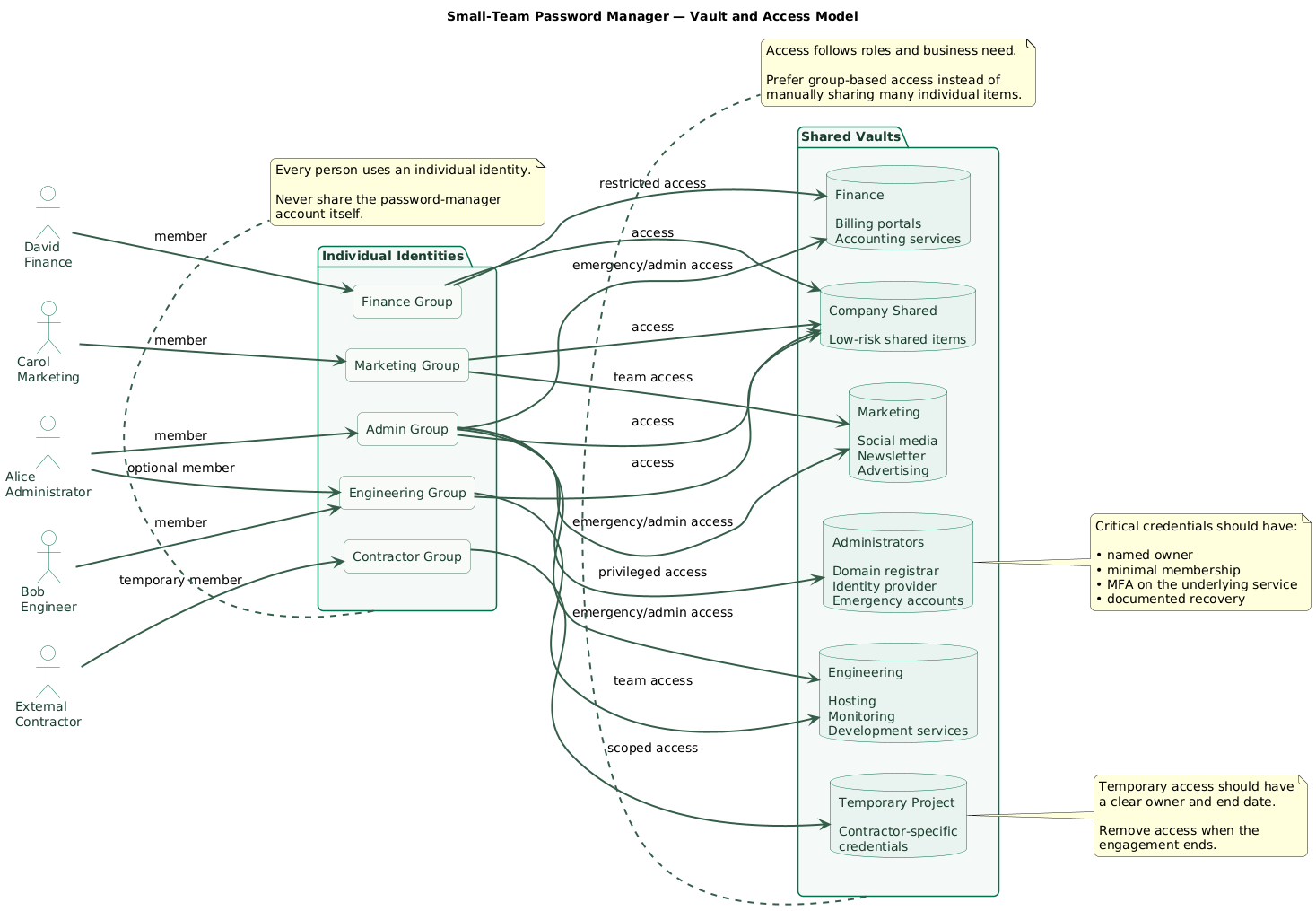
Example structure
Organization
├── Company Shared
│   └── Low-risk credentials used by everyone
│
├── Engineering
│   ├── Hosting
│   ├── Monitoring
│   └── Development services
│
├── Marketing
│   ├── Social media
│   ├── Newsletter
│   └── Advertising services
│
├── Finance
│   ├── Billing portals
│   └── Accounting integrations
│
└── Administrators
    ├── Domain registrar
    ├── Identity provider
    ├── Emergency accounts
    └── Critical infrastructure
The exact terminology differs between products. The principle is stable: people receive access because of their role, not because somebody manually shared dozens of individual items with them.
Keep personal and business items separate
Business credentials should remain under organizational control. Personal banking, private email, family accounts, and unrelated personal passwords should not be placed into a company-controlled shared vault.
Give every important shared item an owner
Ownership means responsibility for reviewing access, rotating a credential after an incident, and confirming whether the account should still exist.
| Credential | Owner | Vault | Access |
|---|---|---|---|
| Domain registrar | Operations lead | Administrators | 2 admins |
| Newsletter service | Marketing lead | Marketing | Marketing group |
| Hosting emergency account | Technical lead | Administrators | Technical admins |
| Shared design account | Design lead | Creative | Design group |
6. Run a small pilot before team-wide rollout
Choose two or three people who use different operating systems, browsers, and types of accounts. Include at least one person who is not responsible for IT.
The pilot should test
- Account invitation and first sign-in.
- MFA enrollment and backup authentication.
- Browser-extension installation.
- Desktop and mobile autofill.
- Password generation.
- Shared-vault access.
- Adding and updating shared items.
- Import from an existing password store.
- Recovery of a test user.
- Removal of a test user from a shared group.
Ask pilot users one important question
“What made you want to avoid using the password manager?”
A technically correct deployment can still fail because autofill is confusing, browser extensions are missing, permissions are unclear, or users do not know where a credential belongs.
Fix friction before writing policy
If users cannot reliably save, find, and autofill credentials, stronger policy language will not solve the rollout. Remove workflow friction first.
7. Migrate credentials in the right order
Do not start with every low-value account. Begin with credentials whose compromise would create the greatest operational impact.
Migration priority
- Primary email and identity-provider administration.
- Domain registrar and DNS.
- Hosting, cloud, and infrastructure administration.
- Source control and CI/CD.
- Payment and financial systems.
- Customer-support and communications platforms.
- Social media and marketing services.
- Ordinary shared SaaS accounts.
- Low-risk legacy systems.
For each migrated shared credential
- Confirm that the account is still required.
- Identify the business owner.
- Determine whether individual accounts can replace sharing.
- Move the credential to the appropriate shared vault.
- Generate a new unique password if the existing one is reused or weak.
- Enable MFA on the service when supported.
- Save necessary recovery codes securely.
- Verify that intended users can sign in.
- Remove the old credential from spreadsheets, notes, and chats where possible.
Generate passwords instead of inventing them
For accounts whose passwords do not need to be memorized, let the password manager generate a long random value accepted by the service. Each service should have a different password.
Do not rotate strong passwords just for the calendar
Prioritize passwords that are weak, reused, exposed, shared too widely, or known to people who no longer need them. A strong unique password does not become weak merely because a fixed number of days has passed.
Clean old storage after migration
Search the locations where the team historically shared credentials:
- Team chat.
- Email.
- Shared spreadsheets.
- Internal wiki pages.
- Project-management tickets.
- Source-code repositories.
- Deployment scripts and configuration files.
- Personal notes.
If a credential was exposed in an inappropriate location, assume that simply deleting the message does not invalidate copies. Rotate the credential when the exposure warrants it.
8. Train users on five behaviors that matter
A short practical session is more valuable than a long policy document. Ask users to perform these actions themselves.
1. Save new credentials immediately
The password manager should become the normal place where a newly created login goes. Do not create a password in a text editor and promise to save it later.
2. Generate unique passwords
If the service accepts a generated password, use one. Reuse is dangerous because a compromise of one service can become a credential-stuffing attack against another.
3. Use autofill as a phishing signal
Password managers match credentials to websites. If a familiar login page suddenly does not offer the expected autofill item, stop and verify the domain rather than immediately copying the password manually.
4. Share through the manager, not chat
Grant access to the vault or item using the product's controlled sharing mechanism. Do not paste the password into a channel simply because it is faster.
5. Report suspicious credentials quickly
If somebody enters a password on a suspicious website, exposes it in a repository, shares it with the wrong recipient, or receives an unexpected MFA prompt, the response should be immediate: report, rotate, revoke sessions where appropriate, and review activity.
Teach the workflow using real low-risk accounts
During training, have each user save a test login, generate a password, autofill it, locate a shared item, and practice the recovery procedure. Demonstration alone is less useful than performing the actions.
9. Build onboarding and offboarding into the process
The biggest operational improvement from a team password manager is not storing passwords. It is being able to change who has access without redistributing credentials manually.
Joiner, mover, leaver lifecycle (diagram)
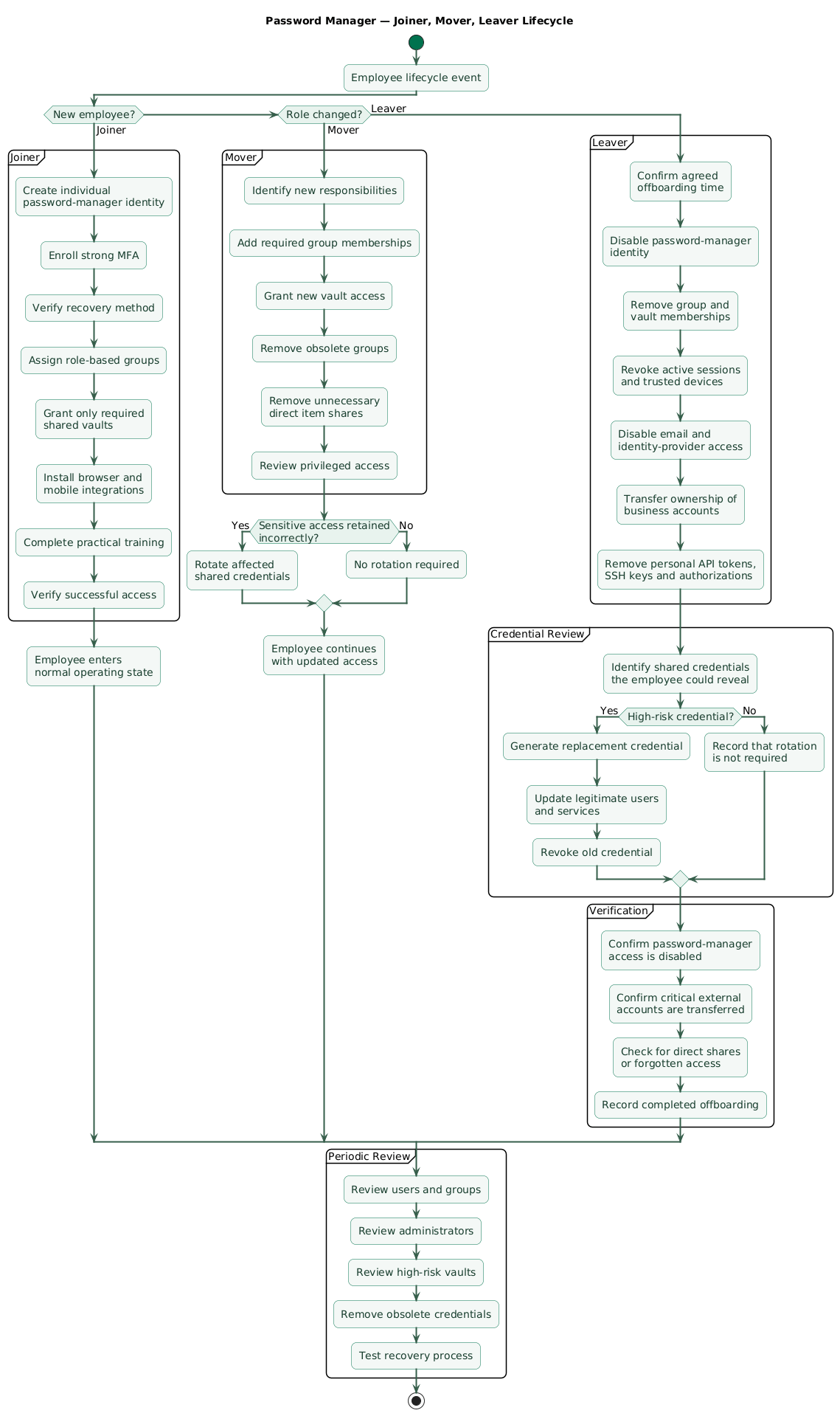
New employee
- Create or provision the individual password-manager account.
- Enroll strong MFA before granting sensitive access.
- Add the employee to role-based groups.
- Provide only the required shared vaults.
- Install browser and mobile integrations.
- Complete the short practical training.
- Verify recovery information.
Role change
- Identify access required by the new role.
- Add the new group memberships.
- Remove obsolete memberships.
- Review direct item shares that bypass groups.
- Rotate sensitive credentials if inappropriate access was retained.
Employee departure
- Disable the password-manager identity at the agreed offboarding time.
- Remove group and vault access.
- Revoke sessions and trusted devices where supported.
- Disable the organization identity-provider and email account.
- Review shared credentials the employee could reveal or export.
- Rotate privileged or especially sensitive shared credentials.
- Remove personal API tokens, SSH keys, and service authorizations.
- Transfer ownership of business accounts and recovery methods.
Revoking vault access cannot erase memory
A departing user may already know, copy, or export a shared password. Rotate high-risk credentials after departure when the former user had access to the plaintext credential and continued knowledge would create unacceptable risk.
When SSO and SCIM become useful
If the team already uses a central identity provider, SSO can simplify authentication and make organizational policies more consistent. Automated provisioning such as SCIM can reduce the chance that former employees remain in the password manager after their primary identity is disabled.
Automation should reduce lifecycle mistakes, not add unnecessary infrastructure. A six-person organization with infrequent changes may be perfectly capable of maintaining a documented manual process.
10. Measure adoption without becoming password police
Measure outcomes that indicate whether the secure workflow has replaced the insecure workflow.
Useful adoption indicators
- Percentage of active employees enrolled.
- Percentage of employees with MFA enabled.
- Number of important shared accounts migrated.
- Number of known reused passwords remaining.
- Number of credentials still documented in spreadsheets or wiki pages.
- Percentage of important shared credentials with an assigned owner.
- Time required to remove a departing employee.
- Number of support requests caused by password-manager friction.
- Number of recovery procedures successfully tested.
Do not optimize for vault size
A vault containing 8,000 items is not automatically safer than one containing 800. Old accounts, duplicates, obsolete credentials, and abandoned test environments increase confusion.
Review quarterly
- Remove inactive users and guests.
- Review administrator membership.
- Review high-risk shared vaults.
- Rotate credentials with known exposure.
- Remove obsolete shared accounts.
- Review recovery procedures.
- Check whether additional SSO or provisioning automation is justified.
A good first-month result
A ten-person team does not need 100% cleanup of every historical login. If all ten people use individual accounts with MFA, critical credentials have moved into controlled vaults, reused passwords are being eliminated, and offboarding has a tested procedure, the rollout is already delivering meaningful risk reduction.
11. Copy/paste rollout checklist
Password manager rollout for a small team

Phase 1: define the problem
- List the most important business systems.
- Identify shared passwords and shared administrator accounts.
- Find credentials currently stored in chat, email, spreadsheets, and docs.
- Identify reused or weak business passwords.
- Define first-month adoption goals.
- Identify who owns the rollout.

Phase 2: select the manager
- Require individual user accounts.
- Require controlled shared vaults or collections.
- Confirm group-based permissions.
- Confirm MFA support.
- Evaluate passkey and security-key support.
- Verify browser and mobile autofill.
- Review administrator recovery.
- Review import and export capability.
- Review audit and security-report capabilities.
- Confirm required operating-system and browser support.
- Evaluate SSO and SCIM only if they solve a real lifecycle problem.

Phase 3: secure administration
- Configure at least two trusted administrators.
- Protect administrator accounts with strong MFA.
- Protect administrator email and identity-provider accounts.
- Register backup authentication methods.
- Document account recovery.
- Keep emergency recovery material outside the password manager.
- Test recovery before migrating critical credentials.

Phase 4: design access
- Create a small number of role-based groups.
- Create vaults based on real access boundaries.
- Keep administrative credentials separate.
- Keep finance, engineering, and marketing access separated where needed.
- Avoid direct per-item sharing when group access works.
- Assign an owner to every critical shared credential.
- Keep personal passwords separate from company-controlled vaults.

Phase 5: pilot
- Select two or three pilot users.
- Include at least one non-technical user.
- Test invitation and enrollment.
- Test MFA.
- Test browser extension and autofill.
- Test mobile access.
- Test password generation.
- Test shared vault permissions.
- Test import.
- Test user recovery.
- Test removal from a group.
- Fix workflow friction before team-wide rollout.

Phase 6: migrate high-risk accounts
- Start with email and identity administration.
- Migrate domain and DNS credentials.
- Migrate hosting and cloud administration.
- Migrate source-control and CI/CD credentials.
- Migrate financial and payment accounts.
- Migrate customer-support and communications systems.
- Migrate social-media accounts.
- Verify whether individual accounts can replace shared logins.
- Generate unique passwords for weak or reused credentials.
- Enable MFA on important services.
- Store recovery codes securely.
- Remove obsolete copies from old storage locations.

Phase 7: team rollout
- Create one account per employee.
- Require MFA before granting sensitive vault access.
- Install approved browser extensions.
- Configure mobile applications where needed.
- Teach users to generate passwords.
- Teach users to use autofill.
- Teach users to verify the domain when autofill fails unexpectedly.
- Teach users to share through the manager instead of chat.
- Explain how to report an exposed credential.
- Explain where new business credentials should be stored.

Phase 8: onboarding
- Provision the individual account.
- Enroll MFA.
- Add the employee to role-based groups.
- Grant only required vault access.
- Complete practical password-manager training.
- Verify recovery configuration.

Phase 9: role changes
- Add required new group access.
- Remove obsolete group access.
- Review direct shares.
- Review privileged credentials.
- Rotate sensitive credentials if access was retained incorrectly.

Phase 10: offboarding
- Disable the password-manager identity.
- Remove all groups and shared-vault access.
- Revoke active password-manager sessions where supported.
- Disable email and identity-provider access.
- Transfer account ownership.
- Remove personal tokens and SSH keys.
- Review credentials the employee could copy or reveal.
- Rotate high-risk shared passwords where appropriate.
- Record completion of offboarding.

Ongoing maintenance
- Review users quarterly.
- Review administrators quarterly.
- Review high-risk vault membership.
- Remove obsolete credentials.
- Investigate exposed or reused passwords.
- Test recovery periodically.
- Review security reports.
- Review access after organizational changes.
- Add SSO or automated provisioning when manual lifecycle management becomes unreliable.
12. FAQ
Should a small team use one shared password-manager account?
No. Give each employee an individual identity. Put shared business credentials into controlled shared vaults or collections. This preserves accountability and lets you remove one employee without changing access for everyone else.
Should the password manager itself use MFA?
Yes. It protects many other credentials, so its authentication deserves strong protection. Use the strongest practical methods supported by your manager and environment, preferably phishing-resistant methods such as passkeys or hardware security keys when available.
Should every password be changed during migration?
Prioritize passwords that are reused, weak, exposed, privileged, shared too widely, or known to people who no longer require access. Strong unique credentials do not need arbitrary calendar-based changes unless another policy requires them or compromise is suspected.
What happens if the only administrator leaves?
That should be prevented during initial setup. Configure at least two trusted administrators, document recovery, protect emergency materials, and periodically test that the recovery procedure still works.
Do small teams need SSO and SCIM?
Not always. Manual provisioning is often adequate for a very small team. SSO and automated provisioning become more valuable when you already have an identity provider, employee changes are frequent, or manual deprovisioning has become difficult to perform consistently.
Should employees put personal passwords in the company manager?
Keep company-controlled business credentials clearly separated from private personal credentials. Some products provide separate personal spaces or benefits, but organizational access and ownership boundaries should remain unambiguous.
Key terms (quick glossary)
- Password manager
- Software designed to securely store and retrieve credentials, generate unique passwords, and provide controlled autofill and sharing.
- Vault
- A logical container used to organize credentials and control which users or groups may access them.
- Shared credential
- A password, recovery code, key, or other authentication secret that legitimately needs to be available to more than one authorized person.
- Autofill
- A feature that fills credentials into a matching website or application without requiring the user to type or copy them manually.
- Password reuse
- Using the same or substantially similar password for more than one account.
- Credential stuffing
- An attack in which credentials stolen from one service are automatically tested against other services.
- MFA
- Multifactor authentication, which requires more than one factor or authenticator to gain access.
- Passkey
- A cryptographic credential designed to provide passwordless or password-replacing authentication with strong resistance to common phishing techniques.
- SSO
- Single sign-on, where a central identity provider authenticates users to multiple connected services.
- SCIM
- System for Cross-domain Identity Management, a standard commonly used to automate user and group provisioning and deprovisioning.
- Deprovisioning
- Removing a person's access to accounts, groups, vaults, sessions, and related organizational resources.
- Break-glass access
- An emergency recovery mechanism reserved for situations where normal administrative or authentication paths are unavailable.
Worth reading
Recommended guides from the category.