Working from home moves part of the security boundary into a network that may also contain smart televisions, cameras, game consoles, printers, voice assistants, personal laptops, phones, and devices belonging to visitors.
You do not need enterprise networking equipment to improve that environment. A supported router with modern Wi-Fi encryption, current firmware, protected administration, sensible network separation, and no unnecessary internet-facing services provides a strong practical baseline for most home offices.
Focus on the settings that change risk
Modern encryption, updates, administrator security, reduced exposure, network separation, and device inventory matter more than hiding the Wi-Fi name or constantly changing ordinary settings.
1. Why the router matters for remote work
The router sits between the home network and the internet. It also determines which wireless devices can join the network and, on many home systems, which local devices can communicate with one another.
Home Wi-Fi remote-work security layers (diagram)
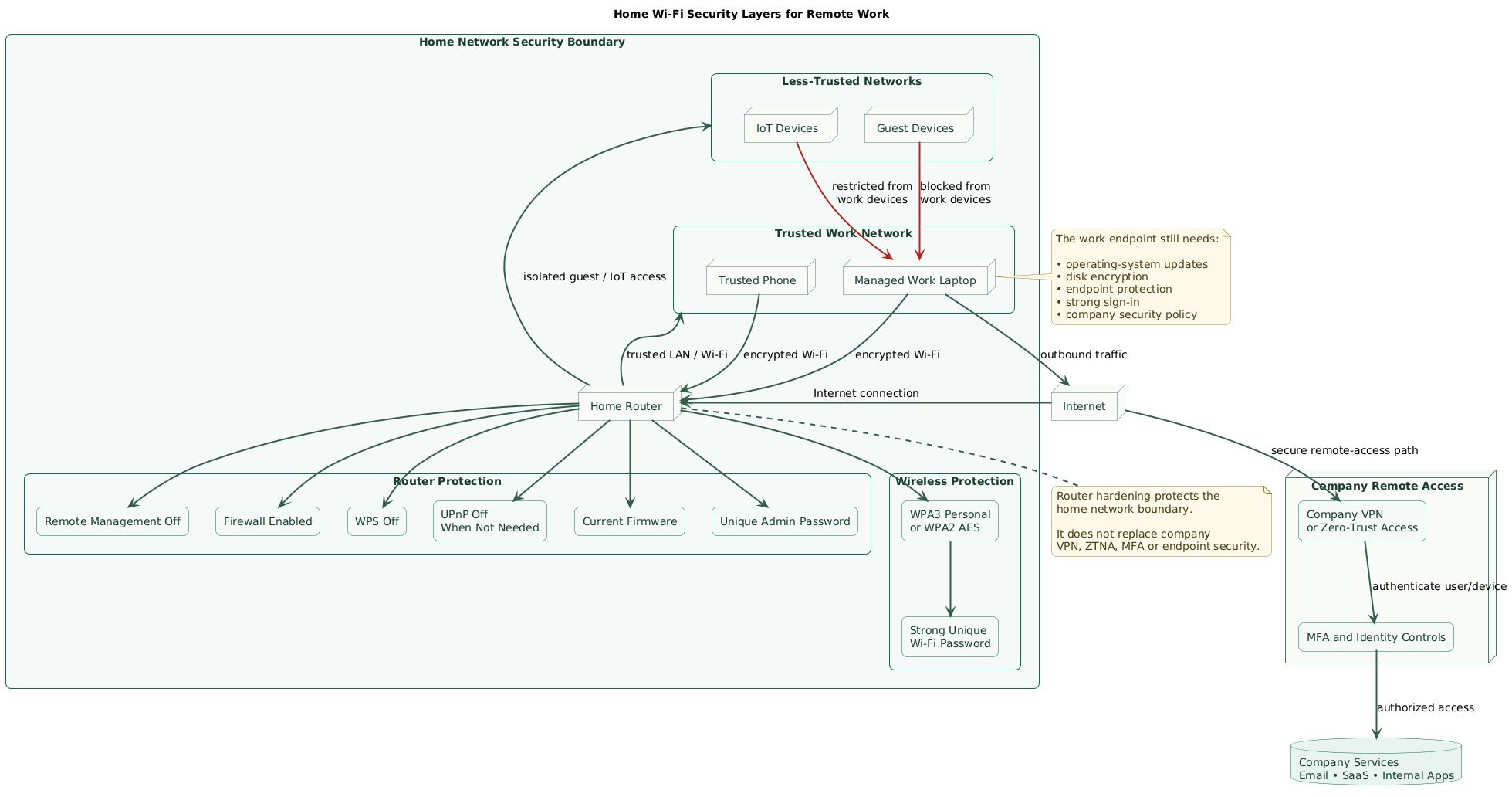
The router can influence
- Wi-Fi authentication and encryption.
- Who can administer network settings.
- Whether management is exposed to the internet.
- Which devices can communicate locally.
- Whether guest devices are isolated.
- Automatic port mappings and manual port forwarding.
- DNS configuration.
- Firewall behavior.
- Firmware security updates.
- Visibility into connected devices.
The router does not replace security on the work laptop. Disk encryption, operating-system updates, MFA, endpoint protection, company VPN or zero-trust access, and organizational policies remain separate layers.
Do not expose a work computer directly
Avoid creating inbound port-forwarding rules to a work laptop for Remote Desktop, SSH, file sharing, development servers, or similar services unless your organization explicitly requires and secures that architecture. Use the company-approved remote-access mechanism instead.
2. Before changing settings: know what you have
Router interfaces vary significantly. Before changing anything, identify the router model, firmware status, internet-service-provider requirements, and connected devices.
Record the baseline
Home router baseline

Router manufacturer:
Router model:
Firmware version:
Firmware update method:
Automatic updates available: Yes / No

Internet provider:
Router owned by: User / ISP

Administration address:
Administration username:
Remote administration enabled: Yes / No

Wi-Fi security mode:
Main SSID:
Guest SSID:
IoT SSID:

WPS enabled: Yes / No
UPnP enabled: Yes / No
DMZ host configured: Yes / No

Manual port-forwarding rules:
-

DNS configuration:
-

Expected devices:
-

Unknown devices:
-
Back up the configuration when supported
A router configuration backup can help recover from a mistake, but treat the backup as sensitive. It may contain network names, settings, account details, or other configuration information.
Check support status
If the manufacturer no longer provides security updates, or the router supports only obsolete Wi-Fi security modes, replacement may be more useful than spending hours hardening unsupported equipment.
Use the manufacturer's administration interface
Avoid unofficial router-management applications and random firmware downloads. Use the router manufacturer's documented interface, official application, or ISP management process.
3. Update the router and protect administration
Start with the router itself. A strong Wi-Fi password does not protect a router whose administrative account still uses a default credential or whose firmware contains an already fixed vulnerability.
Install firmware updates
- Check the router's update interface.
- Install current stable firmware from the manufacturer or ISP.
- Enable automatic firmware updates when the router supports them reliably.
- Restart the router when the update process requires it.
- Check the firmware version after the restart.
Change the router administrator password
The router administrator credential and Wi-Fi password serve different purposes and should be different.
- Wi-Fi password: allows a device to join the wireless network.
- Administrator password: allows someone to change the router itself.
Use a long, unique administrator password and store it in a password manager. Change a default administrator username when the router allows it.
Disable internet-facing administration
Router settings may describe this feature as remote administration, remote management, web access from WAN, management from internet, or something similar.
Disable it unless you have a specific reason to administer the home router from outside the home network. Local administration is sufficient for most users.
Administer from a trusted device
Use an updated laptop or phone you control when changing router settings. Avoid administering the router from a guest computer or an untrusted public network.
4. Use WPA3 or WPA2 AES with a strong Wi-Fi password
For a current home network, use WPA3 Personal when your important devices support it.
If older devices cannot connect, a WPA2/WPA3 transitional mode can provide compatibility. When WPA3 is unavailable, use WPA2 Personal with AES.
Avoid legacy security modes
- WEP.
- WPA Personal.
- TKIP-only configurations.
- Open or unsecured Wi-Fi for normal home use.
- Legacy WPA/WPA2 modes when a modern WPA2 AES or WPA3 option exists.
Use a strong Wi-Fi password
Choose a long password or passphrase that is unique to the home Wi-Fi network. Do not reuse an email, company, router-admin, or other important account password.
Store the value in a password manager. Household devices can receive it through supported secure sharing rather than placing it permanently on a note beside the router.
Do not publish personal information in the SSID
Use a recognizable but non-sensitive network name. Avoid including your full name, street address, apartment number, employer, or a message revealing what router model you use.
Compatibility problems are useful information
If one old smart device prevents the entire network from using modern security settings, consider moving that device to an isolated IoT network or replacing it rather than weakening the primary network permanently.
5. Disable convenience features you do not need
WPS
Wi-Fi Protected Setup is designed to make connecting devices easier. Normal devices can instead join by using the Wi-Fi password or other supported secure onboarding methods.
Disable WPS unless your environment has a specific requirement for it.
UPnP
Universal Plug and Play can allow applications and devices inside the network to request network configuration automatically, including port mappings on many consumer routers.
Disable UPnP if you do not need it. If a game console, communication application, or another legitimate device stops working correctly, decide whether that use justifies enabling it or whether a narrower configuration is available.
Remote management
Disable internet-facing administration unless it is deliberately required and protected. A router generally does not need its administration panel reachable from the public internet for ordinary remote work.
Unused file and media sharing
Some routers provide USB storage, FTP, SMB file sharing, media servers, cloud access, printer servers, or similar functionality. Disable services you do not use.
Do not use the router DMZ as a troubleshooting shortcut
A consumer-router “DMZ host” setting can expose a device to unsolicited inbound traffic that would otherwise be blocked. Do not place a work laptop in the DMZ to fix a connectivity problem.
6. Separate work devices, guests, and IoT
Many home routers can create additional wireless networks. Use this to limit unnecessary local communication between trusted work devices and devices with different security expectations.
Home Wi-Fi network segmentation (diagram)
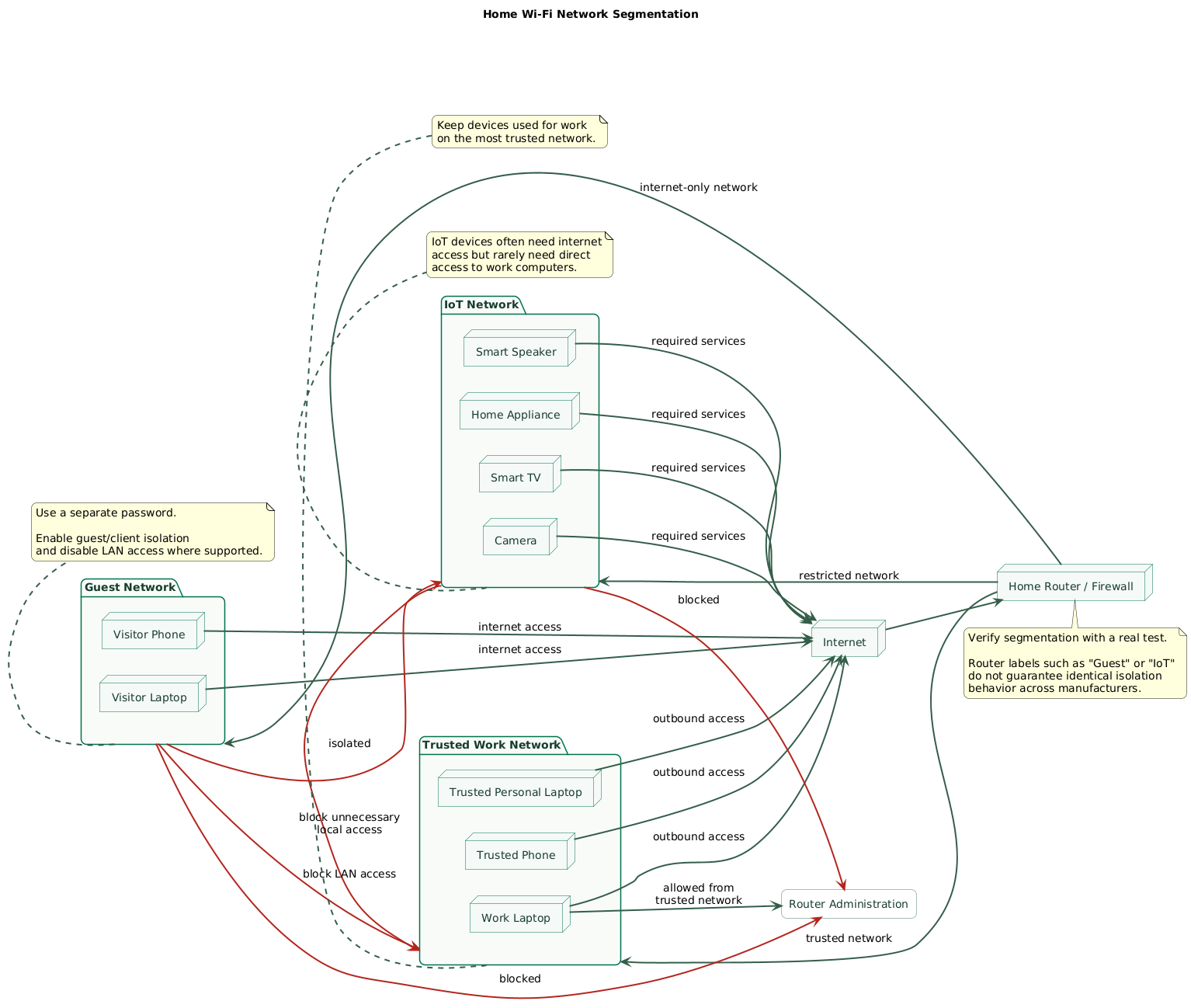
A practical three-zone design
| Network | Typical devices | Local access |
|---|---|---|
| Main / Work | Work laptop, trusted personal computer, phone | Only trusted devices |
| IoT | Cameras, smart speakers, televisions, appliances | Restricted from work devices where supported |
| Guest | Visitors and temporary devices | Internet only where supported |
Some routers provide only one guest network. In that case, decide whether it is more useful for visitors, IoT devices, or both. More advanced routers may support multiple SSIDs, VLANs, or explicit firewall policies.
Enable guest isolation
Look for options such as client isolation, guest isolation, intranet access, local-network access, or access to LAN. For a visitor network, prevent access to the main LAN unless guests genuinely need a local service.
Give the guest network a different password
Do not reuse the primary Wi-Fi password. This lets you rotate guest access without reconnecting every work device.
Verify isolation instead of trusting the label
Router implementations vary. Connect a test device to the guest or IoT network and confirm whether it can reach printers, computers, router administration, file shares, or other local systems.
7. Review firewall, port forwarding, and exposed services
A typical home router blocks unsolicited inbound internet connections by default. Preserve that baseline unless a service genuinely needs an exception.
Keep the router firewall enabled
Do not disable the firewall to troubleshoot one application. Identify the specific connection requirement instead.
Review manual port forwarding
Remove rules you no longer recognize or need. Pay particular attention to forwards for:
- Remote Desktop.
- SSH.
- NAS administration.
- Security cameras.
- Home automation dashboards.
- Development servers.
- Game servers.
- Remote router or firewall management.
Review the DMZ host setting
For normal home use, no work laptop should need to be configured as the router's DMZ host.
Check IPv6 as well as IPv4
If the internet provider supplies IPv6 connectivity, confirm that the router's IPv6 firewall remains enabled. Do not assume that IPv4 NAT rules describe every possible network path.
Inbound access should have an owner
If you intentionally expose a service, record what it is, who needs it, how it is authenticated, when it was last updated, and whether the rule can be removed later.
8. DNS, VPNs, and company remote access
DNS configuration
The router may use DNS resolvers supplied by your internet provider or a resolver you configure manually. Changing DNS can affect privacy, filtering, reliability, and troubleshooting, but it does not replace Wi-Fi encryption, HTTPS, endpoint protection, or safe browsing.
Use a resolver you trust. When operating systems or browsers use encrypted DNS, ensure the router is not unnecessarily blocking that traffic unless your organization intentionally manages DNS through another security control.
Company VPN or zero-trust access
If your employer provides a VPN, zero-trust access client, managed browser, virtual desktop, or another remote-access platform, follow that policy.
The company control protects access to organizational systems. The home router protects the local network. These layers complement rather than replace one another.
Do not install random consumer VPN software on a work device
A consumer VPN changes where internet traffic exits and adds another service provider to the trust path. It may also interfere with organization-managed networking. Use software approved by the employer on managed work devices.
Avoid exposing a personal VPN server casually
Running your own VPN can be useful for advanced users, but it becomes an internet-facing service that requires updates, strong authentication, key management, logging, and deliberate firewall configuration.
Router security cannot fix a compromised endpoint
If the work laptop is infected, unpatched, or using stolen credentials, a well-configured home router may limit some network exposure but cannot restore trust to the device or account.
9. Review connected devices and unusual changes
Home networks are easier to secure when you know what is connected. Router interfaces often provide a client list, network map, DHCP table, or connected-device page.
Review the device list
- Identify laptops, phones, tablets, televisions, printers, and IoT devices.
- Rename devices in the router interface when that helps recognition.
- Investigate devices you do not recognize.
- Remove old devices when the router supports remembered-device cleanup.
- Check whether a device belongs on the main, IoT, or guest network.
Remember MAC randomization
Modern phones and computers may use private or randomized Wi-Fi addresses. An unfamiliar MAC address is therefore not automatically an intruder. Compare device names, connection times, IP addresses, and the device's own network settings before blocking it.
Check important settings periodically
- Firmware version.
- Administrator accounts.
- Remote management.
- WPS.
- UPnP.
- Port-forwarding rules.
- DMZ configuration.
- DNS servers.
- Wi-Fi security mode.
- Guest-network isolation.
- Unexpected connected devices.
Router-hardening review flow (diagram)

Take a configuration snapshot
Keep a short record of expected settings. Comparing today's router configuration with a known baseline is often easier than remembering whether a strange port-forwarding rule was intentional.
10. Router settings that matter less than people think
Hiding the SSID
Hiding a network name is not a substitute for authentication and modern encryption. Use WPA3 or WPA2 AES and a strong password rather than treating a non-broadcast SSID as a primary security control.
MAC address filtering
MAC filtering can be useful for administration in niche environments, but it is not strong authentication. It also creates management friction as devices increasingly use private Wi-Fi addresses.
Changing the Wi-Fi password constantly
A long unique password does not need arbitrary frequent changes. Rotate it when somebody who should no longer have access knows it, when exposure is suspected, or when you intentionally reset network membership.
Disabling DHCP
Requiring manually assigned IP addresses does not provide meaningful authentication and creates unnecessary configuration work for ordinary home networks.
Changing default private IP ranges
Changing from one private subnet to another may help network organization or resolve VPN routing conflicts, but it does not replace encryption, access control, updates, or firewall policy.
Spend effort in this order
Update the router, secure administration, configure WPA3 or WPA2 AES, disable unnecessary exposure, isolate less-trusted devices, review inbound rules, and maintain an inventory. Only then spend time on minor cosmetic hardening.
11. Copy/paste router security checklist
Home Wi-Fi security for remote work

Router support
- Record the router manufacturer and model.
- Confirm that the router still receives security updates.
- Record the current firmware version.
- Install the latest supported stable firmware.
- Enable automatic firmware updates when supported and reliable.
- Replace unsupported hardware that cannot use modern Wi-Fi security.

Router administration
- Change the default administrator password.
- Use a unique administrator password.
- Change the default administrator username where supported.
- Store administrator credentials in a password manager.
- Disable remote administration from the internet.
- Administer the router only from trusted devices.
- Review all administrator accounts.
- Back up the router configuration when supported.
- Protect configuration backups as sensitive data.

Wi-Fi security
- Use WPA3 Personal when supported by important devices.
- Use WPA2/WPA3 transitional mode when legacy compatibility is required.
- Use WPA2 Personal with AES when WPA3 is unavailable.
- Avoid WEP.
- Avoid WPA Personal.
- Avoid TKIP-only security.
- Avoid open Wi-Fi for the primary network.
- Use a long, unique Wi-Fi password.
- Do not reuse the router administrator password.
- Use a non-sensitive SSID.

Convenience features
- Disable WPS unless specifically required.
- Disable UPnP when it is not needed.
- Disable internet-facing remote management.
- Disable unused router file-sharing services.
- Disable unused FTP, media-server, and cloud-access functions.
- Review USB-storage sharing if the router supports it.

Network segmentation
- Keep work devices on a trusted network.
- Create a guest network when supported.
- Use a separate password for guests.
- Block guest access to the local LAN where supported.
- Place IoT devices on a separate network where practical.
- Prevent IoT devices from directly reaching work devices where supported.
- Test isolation rather than assuming the router implements it correctly.

Firewall and exposure
- Keep the router firewall enabled.
- Review all manual port-forwarding rules.
- Remove obsolete port forwards.
- Do not forward Remote Desktop directly to a work laptop.
- Do not expose SSH on a work laptop unless specifically approved.
- Review camera, NAS, and home-automation exposure.
- Confirm that no work device is configured as the DMZ host.
- Review IPv6 firewall settings when IPv6 is enabled.
- Document intentionally exposed services.

DNS and remote access
- Use DNS resolvers you trust.
- Do not treat DNS filtering as a replacement for endpoint security.
- Avoid unnecessarily blocking encrypted DNS.
- Use the company-approved VPN or zero-trust access system.
- Do not install unapproved consumer VPN software on managed devices.
- Do not expose work services merely to avoid using the company remote-access system.

Connected devices
- Review the router's connected-device list.
- Identify every expected laptop, phone, printer, TV, and IoT device.
- Investigate unknown devices.
- Remember that modern devices may use randomized MAC addresses.
- Remove obsolete remembered devices where useful.
- Move less-trusted devices away from the work network.

Remote-work devices
- Keep the work laptop fully updated.
- Keep full-disk encryption enabled.
- Use strong sign-in and MFA.
- Keep the endpoint firewall enabled.
- Use company endpoint protection where required.
- Lock the device when it is unattended.
- Do not share work-device accounts with household members.
- Follow employer policies before changing networking software.

Periodic review
- Check router firmware regularly.
- Review remote administration.
- Review WPS.
- Review UPnP.
- Review port forwarding.
- Review DMZ settings.
- Review DNS servers.
- Review Wi-Fi encryption mode.
- Review guest and IoT isolation.
- Review connected devices.
- Change Wi-Fi credentials after meaningful exposure or access changes.
12. FAQ
Should I use WPA3 or WPA2 for my home Wi-Fi?
Use WPA3 Personal when your important devices support it. If compatibility is a problem, WPA2/WPA3 transitional mode is a practical option. When WPA3 is unavailable, WPA2 Personal with AES remains preferable to older WPA, WEP, TKIP, or open configurations.
Should WPS be disabled?
Yes, unless you have a specific reason to use it. Most devices can be connected normally with the network password, QR-based sharing, or another supported secure setup method.
Should UPnP be disabled for remote work?
Disable it when you do not need automatic port mapping. Some gaming, communication, or home devices may rely on it, so test your environment. Avoid enabling UPnP merely because troubleshooting instructions suggested it without explaining why.
Should my work laptop have its own Wi-Fi network?
It can, but it is not mandatory for every home. A useful baseline is to keep trusted computers on the primary network and move visitors and less-trusted IoT devices to isolated networks. A dedicated work network becomes more attractive when the router supports reliable segmentation.
Does hiding my SSID make the network secure?
No. Use modern Wi-Fi encryption and a strong password. SSID hiding should not be treated as an authentication or encryption mechanism.
Does a secure home router replace my employer's VPN?
No. Router hardening protects the home network. Employer-provided VPN, zero-trust access, MFA, endpoint management, and identity controls protect access to company systems. Use both layers where required.
Key terms (quick glossary)
- Router
- A network device that connects different networks and commonly provides internet routing, firewall, Wi-Fi, DHCP, and other services in a home.
- WPA3 Personal
- A modern Wi-Fi security mode for personal networks that provides authentication and encryption between compatible wireless devices and the access point.
- WPA2 Personal
- An older but still widely supported Wi-Fi security mode. AES-based configurations are preferable when WPA3 cannot be used.
- SSID
- Service Set Identifier, the name used to identify a Wi-Fi network.
- WPS
- Wi-Fi Protected Setup, a convenience mechanism designed to simplify connecting devices to a wireless network.
- UPnP
- Universal Plug and Play, a collection of mechanisms that lets devices automatically discover services and, on many routers, request network mappings.
- Port forwarding
- A router rule that directs selected inbound traffic from the internet to a device or service inside the local network.
- DMZ host
- On many consumer routers, a device configured to receive broad unsolicited inbound traffic that does not match other forwarding rules.
- Guest network
- A separate wireless network intended for visitors or less-trusted devices, often with restricted access to the primary LAN.
- Network segmentation
- Dividing devices into separate network zones and restricting communication between them.
- DNS
- Domain Name System, which translates domain names into network addresses and related records.
- VPN
- Virtual Private Network, commonly used to create an encrypted connection between a remote device and an organization or another trusted network.
Worth reading
Recommended guides from the category.