A new laptop may look clean, but it is not necessarily ready for sensitive work. It may have pending operating-system and firmware updates, trial software, unnecessary browser extensions, weak recovery settings, unverified disk encryption, or no working backup.
You can address the most important risks in approximately 30 minutes. The objective is not to activate every advanced security option. It is to establish a dependable baseline that protects the laptop from common account attacks, malicious software, accidental changes, physical loss, and failed recovery.
Work and school devices
Follow your organization's security and device-management policy first. Do not remove management profiles, required security software, certificates, organizational accounts, or encryption recovery settings without authorization.
1. What laptop hardening means
Hardening means reducing unnecessary ways to access, modify, or misuse a system. For a personal or small-business laptop, this usually means enabling the protections already available in the operating system and removing software or permissions that are not required.
A practical baseline protects against
- Theft or loss of the physical laptop.
- Stolen account passwords and active sessions.
- Known vulnerabilities in outdated software and firmware.
- Malicious downloads and untrusted applications.
- Unnecessary network services and inbound connections.
- Risky browser extensions with broad access.
- Accidental deletion, drive failure, and failed updates.
- Lockout caused by missing recovery information.
What the baseline cannot guarantee
No configuration makes a laptop immune to phishing, malicious documents, stolen browser sessions, software supply-chain attacks, physical tampering, or a determined attacker using an unknown vulnerability. Hardening reduces the likelihood and impact of an incident; it does not eliminate the need for careful use.
Keep the secure path convenient
A setting that regularly blocks legitimate work will eventually be disabled. Prefer protections that run automatically, provide a clear recovery path, and require exceptions only for specific needs.
2. Before starting the 30-minute checklist
Connect to a trusted network and keep the laptop connected to power. Operating-system, driver, firmware, and encryption changes may require several restarts.
30-minute laptop-hardening timeline (diagram)

Prepare these items
- Administrative access to the laptop.
- A trusted internet connection.
- Access to your primary email account.
- Access to your password manager or another secure password system.
- A separate place to store disk-encryption recovery information.
- An external drive or trusted backup destination when available.
- Your organization's support contact for a managed laptop.
Confirm that the operating system is supported
Security updates are the foundation of the checklist. If the laptop uses an operating-system release that no longer receives normal security updates, upgrade to a supported release before storing important data.
Do not begin with a cleanup utility
Registry cleaners, driver-download tools, unofficial optimization suites, and aggressive debloating scripts can remove security controls, install unwanted software, or make later updates unreliable. Begin with the operating system's own update and security tools.
3. Minutes 0–5: update the operating system and firmware
A new laptop may have been manufactured months before it reached you. Install all available security, quality, driver, and firmware updates before installing a large set of applications.
Update in this order
- Install operating-system updates.
- Restart when requested.
- Check for updates again.
- Install approved driver and device-firmware updates.
- Update the web browser and built-in application store.
- Enable automatic security updates.
Rechecking matters because one platform update may make another firmware, driver, or cumulative update available.
Use trusted update channels
- Use the operating system's built-in update service.
- Use the laptop manufacturer's official support application.
- Use official application stores or the software publisher.
- Avoid generic websites offering “all missing drivers.”
- Do not install firmware from an unrelated model or region.
Review automatic-update settings
Enable automatic security updates and background security components. You may choose when major feature upgrades occur, but routine security patches should not depend on remembering a monthly manual task.
Restart now, not next week
Some updates are not active until the laptop restarts. Complete the restart cycle before assuming the device is protected.
4. Minutes 5–10: enable full-disk encryption
Full-disk encryption protects stored data when a powered-off laptop is stolen, lost, or its drive is removed. Windows provides Device Encryption or BitLocker on supported configurations, macOS provides FileVault, and many Linux distributions offer full-disk encryption.
Verify, do not assume
- Open the operating system's disk-encryption settings.
- Confirm that the system drive is encrypted or encryption is running.
- Confirm that all internal data volumes are covered when applicable.
- Record how the device can be recovered after a hardware change.
- Protect the recovery key separately from the laptop.
Store the recovery key safely
The recovery key is a safety mechanism, but it can also unlock the encrypted data. Store it in a protected location that remains available if the laptop is lost or fails.
Possible locations include:
- A protected operating-system account with strong MFA.
- A password manager that is accessible from another trusted device.
- An approved organizational recovery-key escrow system.
- A printed copy stored in a physically secure location.
- An encrypted removable drive stored separately.
Avoid circular recovery
Do not store the only recovery-key copy in a document on the encrypted laptop. If the laptop cannot unlock, that copy cannot help you.
Understand the protection boundary
Disk encryption primarily protects data at rest. Once you sign in and the drive is unlocked, applications and malware running under your account may access files according to their permissions.
Shut the laptop down before leaving it in an untrusted location when the physical risk is high. Sleep mode is convenient, but the device may remain in a state where encryption keys are available to the running system.
5. Minutes 10–15: strengthen sign-in and account recovery
The laptop sign-in protects local access, while your primary email, password manager, cloud storage, and operating-system account control recovery and synchronization. Secure both layers.
Configure device sign-in
- Use a strong, unique account password.
- Enable a device-bound PIN, fingerprint, or facial sign-in if supported.
- Disable automatic login.
- Require authentication immediately after sleep or screen lock.
- Configure automatic locking after a short idle period.
- Remove unknown user accounts.
- Disable guest access unless it is genuinely required.
Protect the recovery accounts
Enable MFA for the accounts that can reset everything else, particularly your primary email, password manager, operating-system account, cloud storage, and work identity.
Prefer passkeys, security keys, or another phishing-resistant method when the service supports it. Save backup methods in a location that remains available if the laptop is lost.
Separate routine and administrative work
A standard user account can reduce accidental system-wide changes. When practical, use a standard account for ordinary browsing and document work, and keep a separate administrator account for software installation and system configuration.
Biometrics need a recovery method
A fingerprint or face is convenient, but the laptop still requires a secure PIN, password, or recovery mechanism. Do not weaken the fallback credential because biometric sign-in is enabled.
6. Minutes 15–20: verify built-in device protection
Modern operating systems include multiple protection layers. Confirm that they are active before installing a separate security suite.
Laptop security layers (diagram)
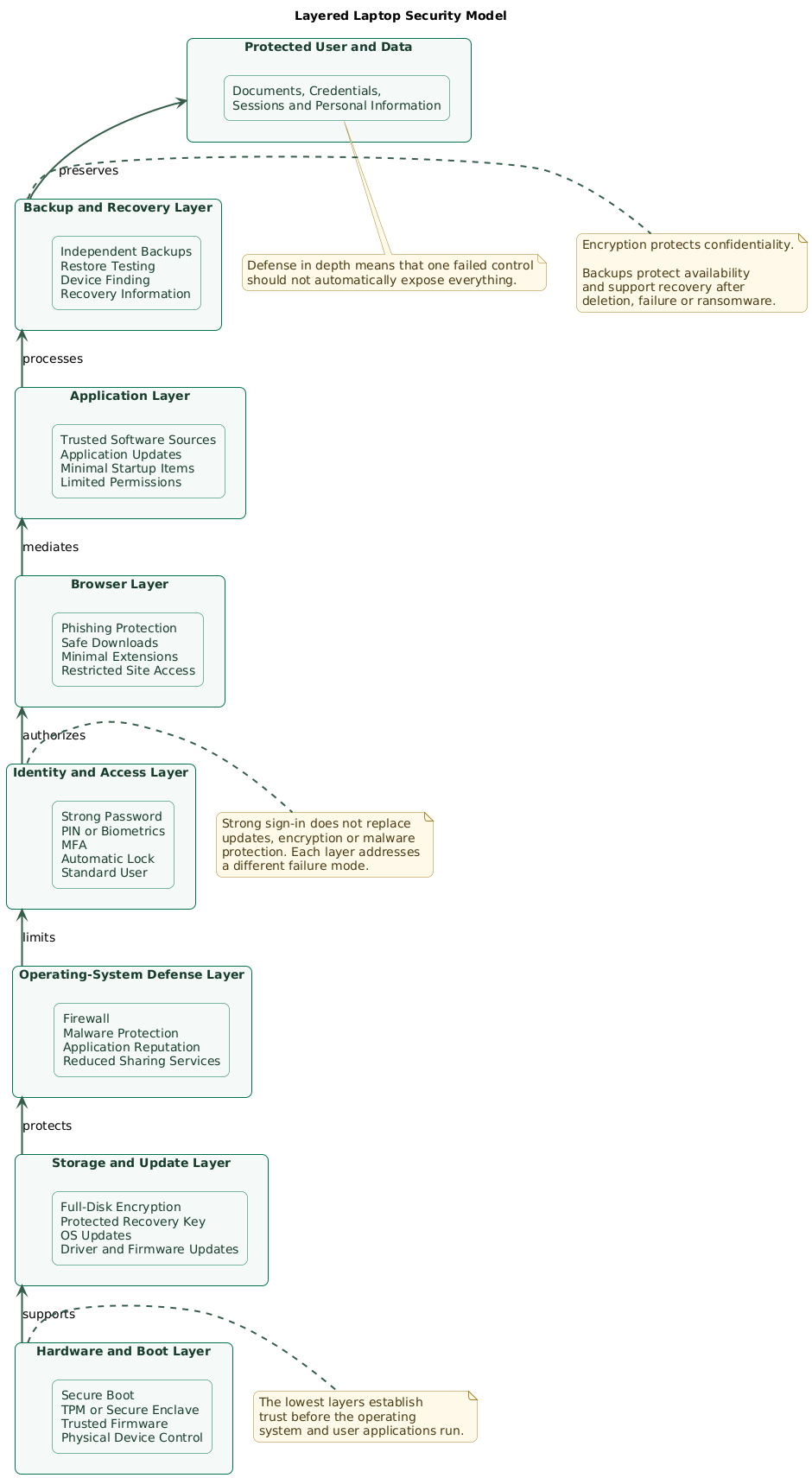
Verify these controls
- Firewall: confirm that the operating-system firewall is enabled for public and private networks.
- Malware protection: confirm that real-time protection and security-intelligence updates are active.
- Application reputation: keep warnings for suspicious applications, websites, and downloads enabled.
- Secure boot: verify that the supported secure-boot mechanism remains enabled unless a documented requirement prevents it.
- Hardware security: check for warnings involving the TPM, secure enclave, core isolation, or related platform controls.
- Sharing services: disable remote login, remote desktop, file sharing, media sharing, and screen sharing unless needed.
- Network discovery: use the public-network profile on untrusted networks.
Do you need third-party antivirus?
Many personal users can begin with the operating system's built-in security tools when those tools remain enabled, supported, and updated. Installing multiple real-time antivirus products can create conflicts.
Use the security product required by your organization or choose a specialist product when you need centrally managed detection, web filtering, advanced device control, or another capability not provided by the baseline.
A firewall is not an antivirus
A host firewall limits network communication according to its rules. It does not make a malicious document, stolen password, unsafe browser extension, or harmful application safe.
7. Minutes 20–25: reduce software and browser risk
Every installed program, background service, browser extension, and updater increases the number of components that need access and security maintenance.
Remove unnecessary software
- Uninstall trial antivirus software you will not use.
- Remove unknown browser toolbars and shopping extensions.
- Remove remote-support tools you did not request.
- Remove vendor utilities that duplicate operating-system functions.
- Remove games and promotional applications you do not want.
- Review startup applications and disable unnecessary background items.
Research an unfamiliar application before removing a driver, hardware control panel, accessibility tool, or device-management component.
Install software from trusted sources
- Prefer the operating system's application store.
- Use the software publisher's official website.
- Verify publisher information and digital-signature warnings.
- Avoid repackaged installers and “download manager” websites.
- Do not disable application-reputation warnings to install unknown software.
- Keep applications on automatic security updates where practical.
Audit browser extensions
Extensions can read or modify website content according to their permissions. An extension with access to every visited website may be able to observe messages, forms, account pages, and other sensitive data.
- Keep only extensions you actively use.
- Review access to site data and browsing history.
- Limit extension access to specific websites where supported.
- Do not allow private-browsing access unless required.
- Remove extensions that changed ownership or purpose unexpectedly.
- Keep browser phishing and malicious-download protection enabled.
Review browser synchronization
Browser synchronization can restore old extensions, passwords, history, and settings to a new laptop. Review what is being synchronized before automatically importing years of unused browser configuration.
Avoid disabling warnings for convenience
If a security warning blocks an application, investigate the publisher, download source, signature, and reason for the warning. Do not make “temporarily disable protection” the normal installation process.
8. Minutes 25–30: configure backup and loss recovery
Encryption protects a lost laptop from unauthorized access. It does not recover files after drive failure, accidental deletion, ransomware, or a forgotten recovery credential. You also need a backup.
Configure at least one independent backup
- Enable the operating system's backup feature.
- Select important user folders and application data.
- Use an external drive or trusted backup service.
- Keep at least one copy independent of the laptop.
- Protect cloud backup accounts with strong MFA.
- Encrypt removable backup media that contains sensitive information.
- Confirm that backup status reports a successful run.
Test one restore
Create a small test file, allow it to enter the backup, delete the local copy, and restore it. A configured backup that has never completed or cannot be restored is not a reliable recovery plan.
Lost-laptop response and recovery (diagram)
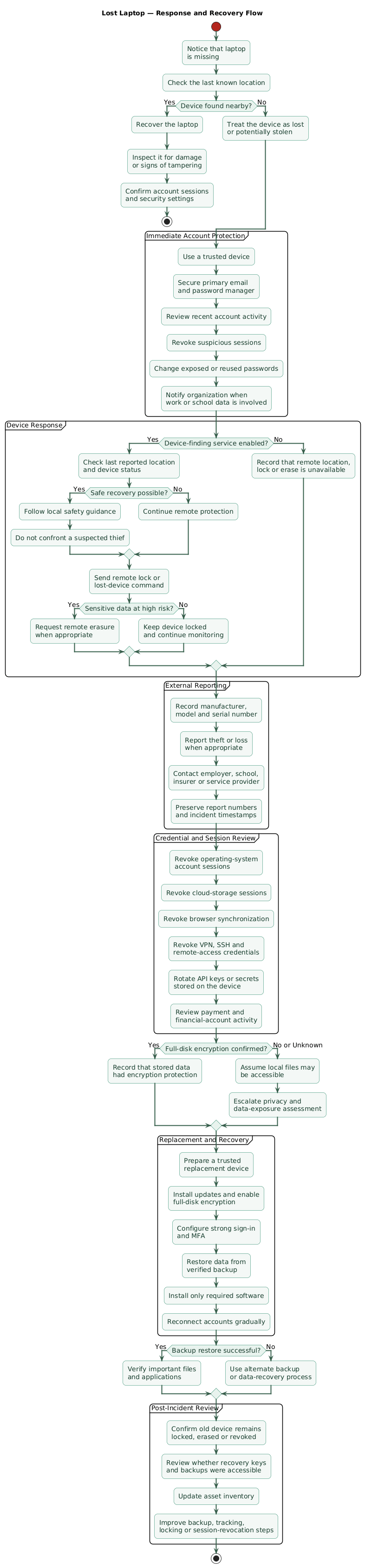
Enable device-finding features carefully
Enable the platform's device-finding feature when it fits your privacy and account model. Confirm that the laptop appears in the account from another trusted device.
Remote location, locking, and erasure depend on the platform, account, device state, and network connectivity. Treat them as useful response tools, not a replacement for encryption.
Record the recovery essentials
- Laptop manufacturer, model, and serial number.
- Disk-encryption status and recovery-key location.
- Backup destination and most recent successful backup.
- Operating-system and primary account recovery methods.
- Organization or insurer contact when applicable.
- A list of important services whose sessions should be revoked.
Finish with a lock test
Lock the laptop, confirm that it requires authentication, and verify that notifications do not reveal sensitive message contents on the lock screen.
9. Windows, macOS, and Linux quick notes
Windows
- Install all Windows Update and approved firmware updates.
- Verify Device Encryption or BitLocker status.
- Confirm the BitLocker recovery-key location.
- Configure Windows Hello and a strong account-recovery method.
- Review Windows Security for unresolved warnings.
- Keep Microsoft Defender Firewall enabled.
- Keep reputation-based and app-and-browser protection enabled.
- Review Secure Boot, core isolation, and hardware-security status.
- Remove unneeded startup applications and vendor trials.
macOS
- Install macOS and background security updates.
- Verify that FileVault is enabled.
- Protect the FileVault recovery method.
- Turn on the macOS firewall.
- Keep Gatekeeper and built-in malware protections enabled.
- Review login items and background extensions.
- Review application access under Privacy & Security.
- Disable remote login, sharing, or AirDrop exposure when not needed.
- Configure Time Machine or another independent backup.
Linux
- Use a supported distribution and release.
- Install all operating-system and firmware updates.
- Enable automatic security updates where appropriate.
- Verify full-disk encryption or encrypted-volume coverage.
- Protect the encryption passphrase and recovery information.
- Use a standard user account and elevate only when required.
- Review which services are listening for network connections.
- Configure the distribution firewall when inbound filtering is needed.
- Install software through trusted distribution repositories.
- Configure and test an independent backup.
Do not copy settings blindly between platforms
Windows, macOS, and Linux use different boot, encryption, application, firewall, and account models. Apply the security objective, then use the supported mechanism for that operating system.
10. Copy/paste 30-minute checklist
New laptop hardening: 30-minute baseline

Before starting
- Connect the laptop to power.
- Use a trusted internet connection.
- Confirm that you have administrative access.
- Confirm access to your primary email and password manager.
- Prepare a separate location for recovery keys.
- Follow organizational policy on a managed laptop.

Minutes 0–5: updates
- Confirm that the operating system is supported.
- Install all operating-system security and quality updates.
- Restart when required.
- Check for updates again.
- Install approved driver and firmware updates.
- Update the browser and application store.
- Enable automatic security and background updates.
- Avoid unofficial driver-download and optimization tools.

Minutes 5–10: full-disk encryption
- Open the operating system's encryption settings.
- Verify that the system drive is encrypted.
- Confirm coverage of other internal data volumes.
- Record the encryption recovery method.
- Store the recovery key separately from the laptop.
- Protect the recovery-key account with MFA.
- Do not keep the only recovery-key copy on the encrypted drive.

Minutes 10–15: authentication
- Set a strong, unique device-account password.
- Enable a device-bound PIN or biometric sign-in where supported.
- Disable automatic login.
- Require authentication immediately after sleep or lock.
- Configure a short automatic-lock interval.
- Remove unknown users.
- Disable guest access unless required.
- Enable MFA on email, password manager, cloud, and operating-system accounts.
- Prefer passkeys or security keys where supported.
- Save backup authentication methods separately.
- Consider a standard account for daily use and a separate admin account.

Minutes 15–20: built-in protection
- Confirm that the operating-system firewall is enabled.
- Confirm that real-time malware protection is active.
- Confirm that security intelligence is current.
- Keep application and download reputation checks enabled.
- Verify Secure Boot or the platform's equivalent.
- Review hardware-security warnings.
- Disable unused remote login, remote desktop, file sharing, and screen sharing.
- Use the public-network profile on untrusted networks.
- Do not run multiple conflicting real-time antivirus products.

Minutes 20–25: software and browser
- Remove trialware and software you do not need.
- Remove unknown remote-support tools.
- Review startup and background applications.
- Install software only from trusted stores or publishers.
- Keep applications on automatic security updates.
- Review all browser extensions.
- Remove extensions you no longer use.
- Restrict extension access to specific sites where possible.
- Keep phishing and malicious-download protection enabled.
- Review what browser synchronization restores.
- Do not disable security warnings to install unknown applications.

Minutes 25–30: backup and recovery
- Enable an operating-system or trusted backup solution.
- Back up important user folders.
- Keep one backup independent of the laptop.
- Encrypt removable backup media containing sensitive data.
- Protect cloud backup accounts with MFA.
- Confirm that the first backup completes.
- Restore one test file.
- Enable device-finding features when appropriate.
- Confirm that the laptop appears in the device account.
- Record the model and serial number.
- Record where the recovery key and backups are stored.
- Lock the laptop and verify that authentication is required.
- Hide sensitive notification previews on the lock screen.

After the first 30 minutes
- Install only the applications you need.
- Recheck security settings after major operating-system upgrades.
- Review browser extensions and startup applications quarterly.
- Confirm backup success regularly.
- Test file restoration periodically.
- Revoke old devices and sessions from important accounts.
- Review recovery email addresses, telephone numbers, and MFA methods.
- Shut the laptop down before leaving it in a high-risk physical location.
11. FAQ
Do I need third-party antivirus software on a new laptop?
Many personal users can begin with the security tools built into a supported operating system, provided real-time protection, the firewall, application-reputation controls, and automatic updates remain enabled. Use the product required by your organization or a specialist product when you need additional centrally managed capabilities.
Where should I store a BitLocker or FileVault recovery key?
Store it somewhere separate from the encrypted laptop. Suitable options include a protected online account, password manager, organizational recovery system, encrypted removable drive, or printed copy in a secure location. Do not store the only copy on the laptop it unlocks.
Should I use an administrator account for everyday work?
A standard account can reduce accidental system-wide changes and limit some malware behavior. Use a separate protected administrator account when this is practical for your operating system and workflow.
Does full-disk encryption protect the laptop while I am using it?
Its main purpose is to protect data at rest. After you unlock the laptop, applications running under your account may access files according to their permissions. Encryption does not replace malware protection, screen locking, access control, patching, or backups.
Should I use this checklist on a work or school laptop?
Follow organizational policy first. A managed laptop may already enforce encryption, firewall, antivirus, certificates, updates, backups, and account controls. Do not remove management software or change recovery settings without authorization.
Key terms (quick glossary)
- System hardening
- Reducing unnecessary access, software, services, permissions, and configuration weaknesses in a system.
- Full-disk encryption
- Encryption protecting data stored on an entire drive or selected disk volumes when they are locked or powered off.
- Recovery key
- A special value used to regain access to an encrypted drive when the normal unlock mechanism is unavailable.
- Secure Boot
- A boot protection mechanism that verifies approved software components before allowing them to run during startup.
- TPM
- Trusted Platform Module, hardware used by supported systems for cryptographic operations, device integrity, and key protection.
- Least privilege
- Giving a person, account, or application only the permissions required to perform its intended task.
- Standard user
- A user account that can perform routine work but requires elevation or administrator approval for system-wide changes.
- Multifactor authentication
- Authentication requiring more than one factor, such as a password and a trusted device, security key, or biometric confirmation.
- Passkey
- A cryptographic sign-in credential designed to replace or supplement passwords and resist common phishing attacks.
- Host firewall
- Software on the laptop that controls network connections according to configured rules.
- Application reputation
- A security mechanism that warns about or blocks software, websites, and downloads considered untrusted or potentially harmful.
- Backup restore test
- A controlled attempt to recover data from a backup to confirm that the backup is usable.
Worth reading
Recommended guides from the category.